Above Search
<— Return to: https://learn.above.im/s/4cfc56b6-027b-40f4-bd5c-e86417393d23/doc/phone-tablet-guides-mg8bQ5W0qm
<— Previous lesson: https://learn.above.im/s/4cfc56b6-027b-40f4-bd5c-e86417393d23/doc/video-conferencing-yGEinLGl4q
—> Next lesson: https://learn.above.im/s/4cfc56b6-027b-40f4-bd5c-e86417393d23/doc/above-share-vbvQBM83nb
Introduction to Above Search
Above Search is a privacy-focused search tool built on Searx and hosted entirely on Above’s secure infrastructure. It delivers decentralized, uncensored search results from multiple sources without logging or tracking, ensuring your online queries remain completely private and secure.
Performing your first query with Above Search
Above Search is a powerful tool for online research and exploration. It delivers unbiased results from over 100 different sources, optimized for keyword searches to provide the most relevant information. You can use it through any browser, and on the Above Phone we recommend the default Vanadium web browser for the best privacy and performance.
- Open the Vanadium Browser app. This is a private web browser you can use to access the Above Search page.
Opening Above Search in Vanadium
Tap the URL bar at the top of the screen.
Type search.above.im
Tap the → arrow icon in the bottom-right corner of your keyboard to load the page.
- The Above Search web page will now load. Tap the search bar to begin your search.
Making a search with Above Search
Type your query in the search field at the top.
Tap the magnifying glass icon in the top-right corner, or the → arrow icon in the bottom-right of your keyboard.
A list of search results will appear, starting with the most relevant. Above Search is decentralized and does not censor results like some other search engines.
Under each search item, you’ll see which database the result came from. You may see sources like Google, but rest assured your activity is not tracked by third parties. Above Search has zero logging, ensuring your searches remain private.
Setting Above Search as Your Default Search Engine
After completing your first search with Above Search, you can add it as your default search engine in Vanadium’s settings. Make sure you’ve followed the steps above so you’re ready for this step. Once your first search is done, Vanadium will present the option to set Above Search as your default for faster, fully private browsing in the future.
- In Vanadium, from any web page, tap the three-dot menu icon in the top-right corner.
Setting Above Search as the default search engine
From the dropdown menu, tap Settings.
Tap Search engine at the top of the list. The current default will be shown in grey underneath.
Select Above Search by tapping the radio button next to it.
- Confirm that Above Search is selected.
Testing the search engine configuration
Exit the settings pages and tap the search bar at the top to start a new search.
Type your query in the search field.
Tap the → arrow icon in the bottom-right corner of the keyboard to search.
Use the tabs to switch between search types.
Customizing which Search engine / indexes
SearXNG is a meta-search engine that can show you the results of other search indexes. You can customize what it’s going to use in the settings, accessible via the ⚙ gear icon top right.
In the settings, navigate to the ‘Engines’ section settings and enable / disable as you wish. You can specify for different categories.
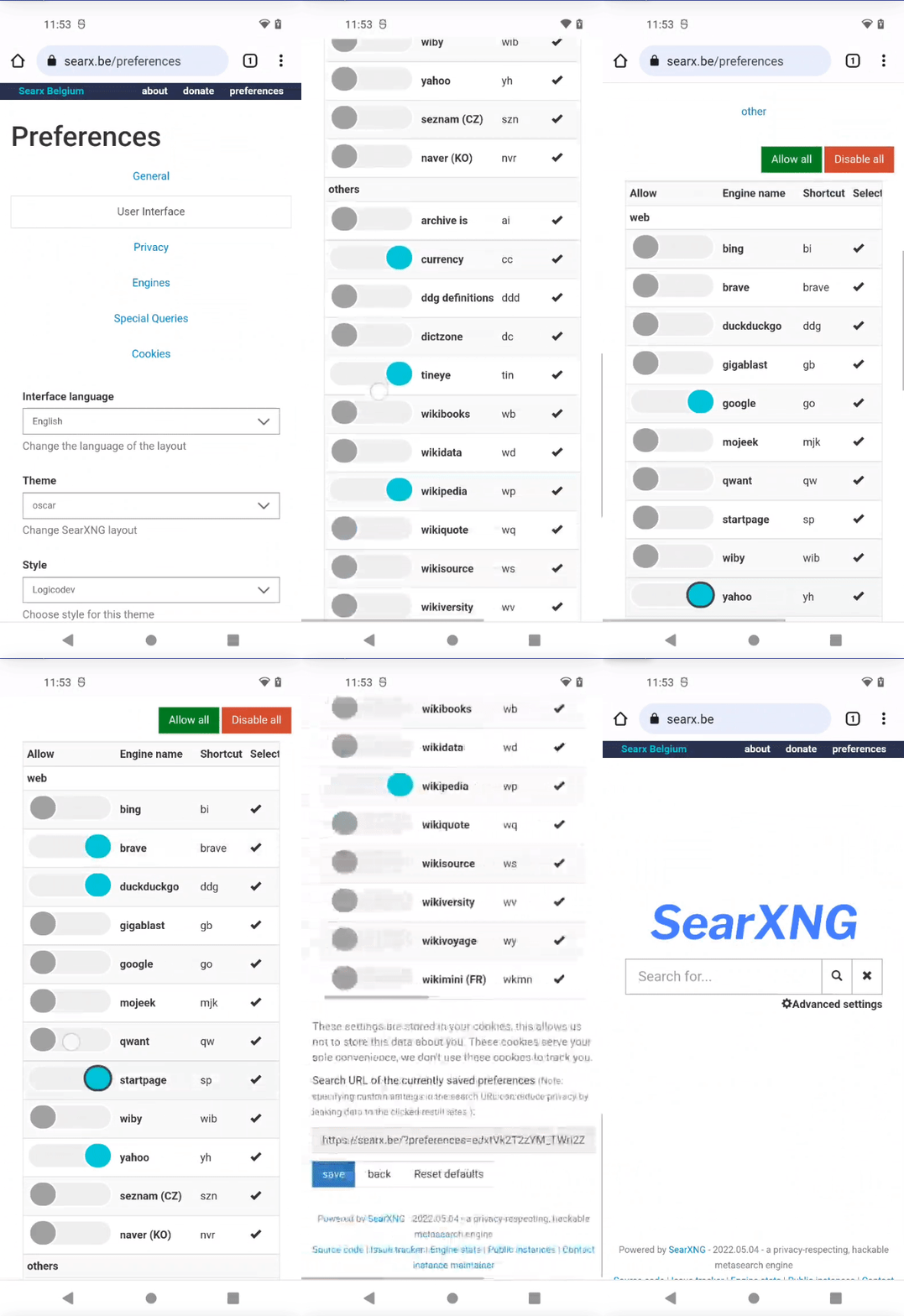
To actually apply your Settings, make sure to scroll to the very bottom and hit the blue Save button at the very bottom left"!
Side note:
If you enable Google here, it only means that the search results are gathered from their engine. So don't worry, Google is not able to track you through SearXNG.