User Profiles
<— Return to: https://learn.above.im/s/12aef602-75ec-4367-b619-07ad051e2a6f/doc/profiles-UiYjt5uT5E
—> Next lesson: https://learn.above.im/s/12aef602-75ec-4367-b619-07ad051e2a6f/doc/data-transfer-via-inter-profile-sharing-vqm71l2D0B
Overview
This is the first video of a series with 4 parts and gives an overview on user profiles, how to create one and the main settings.
Navigate to: Settings > System > Users
Timestamps:
0:00 Overview - Management & general settings
2:00 User Settings - Allow running in background / Turn on phone calls & SMS
3:45 Install apps into users
(for existing app from the 'Owner' profile)
4:55 Forward notifications (from current user to all other users)
5:45 Inter Profile Sharing - detailed tutorial in here
—-
Creating a New User & Sandboxed Google Play
0:00 User Profile Management section
0:50 Creating new user
2:20 Change navigation mode to 3-button navigation
2:45 Strategy for Google Play
3:30 Installing Google Play
5:55 Aurora Store setup
Topics covered here:
Set up a new user profile
Change navigation to 3-button navigation
Set up Aurora Store from fresh install
Set up Sandboxed Google Play components
manage permissions for Sandboxed Google Play components
install proprietary apps that require Google Play
switch back and forth between different user profiles
—-
User profiles creation & management is an in-built feature of Android systems aimed to make it possible for multiple users to use the same device in their own way.
NOTE: You can also use it to separate unfriendly apps from your main system and that way be able to use those apps more privately,
Now let's take a closer look at user profiles:
First, let's localize the settings for user profiles.
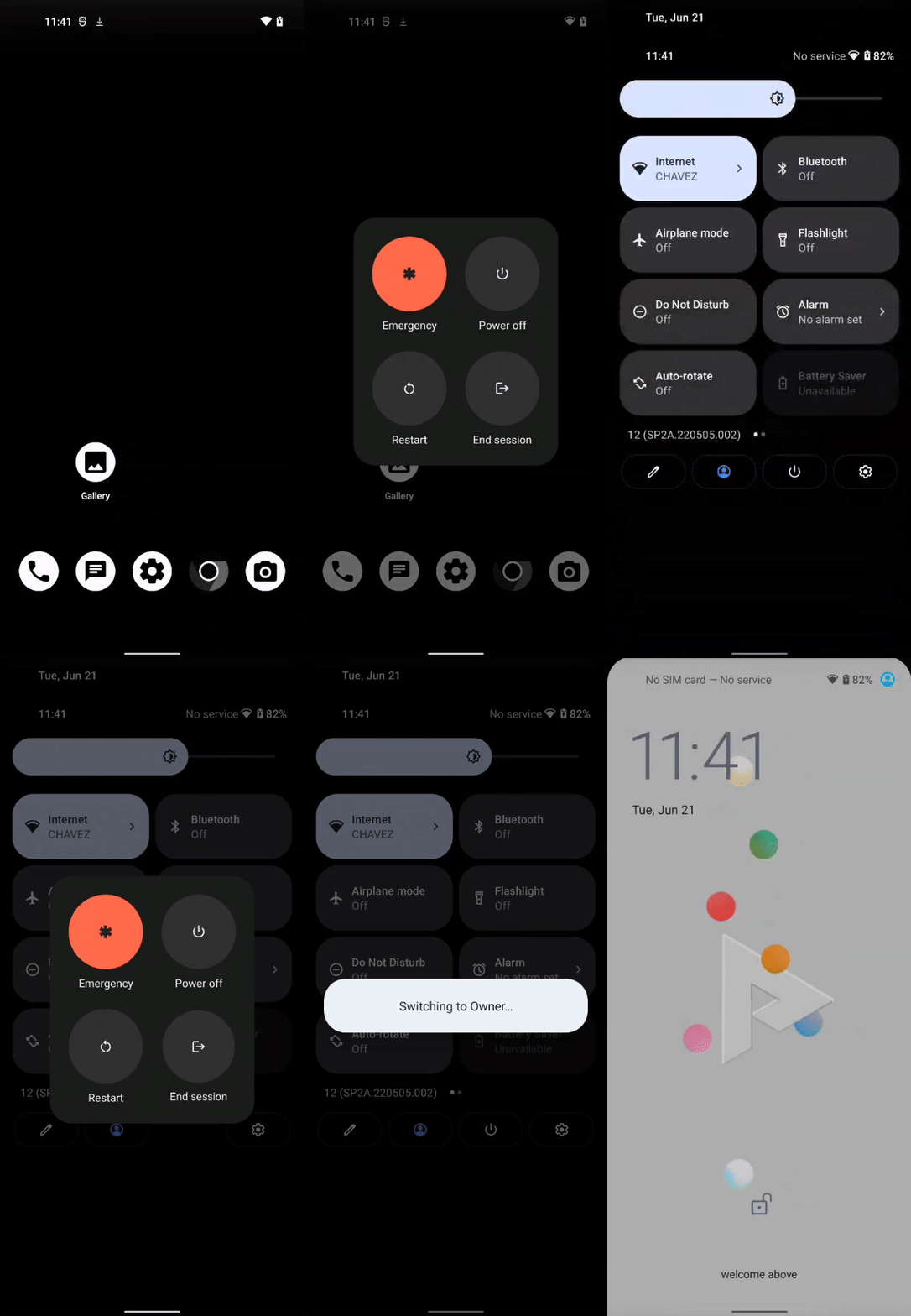
You can just pull down the notification bar fully and locate the symbol with the icon showing a person. Right here is where you can always quickly switch between user profiles - this icon is the shortcut.
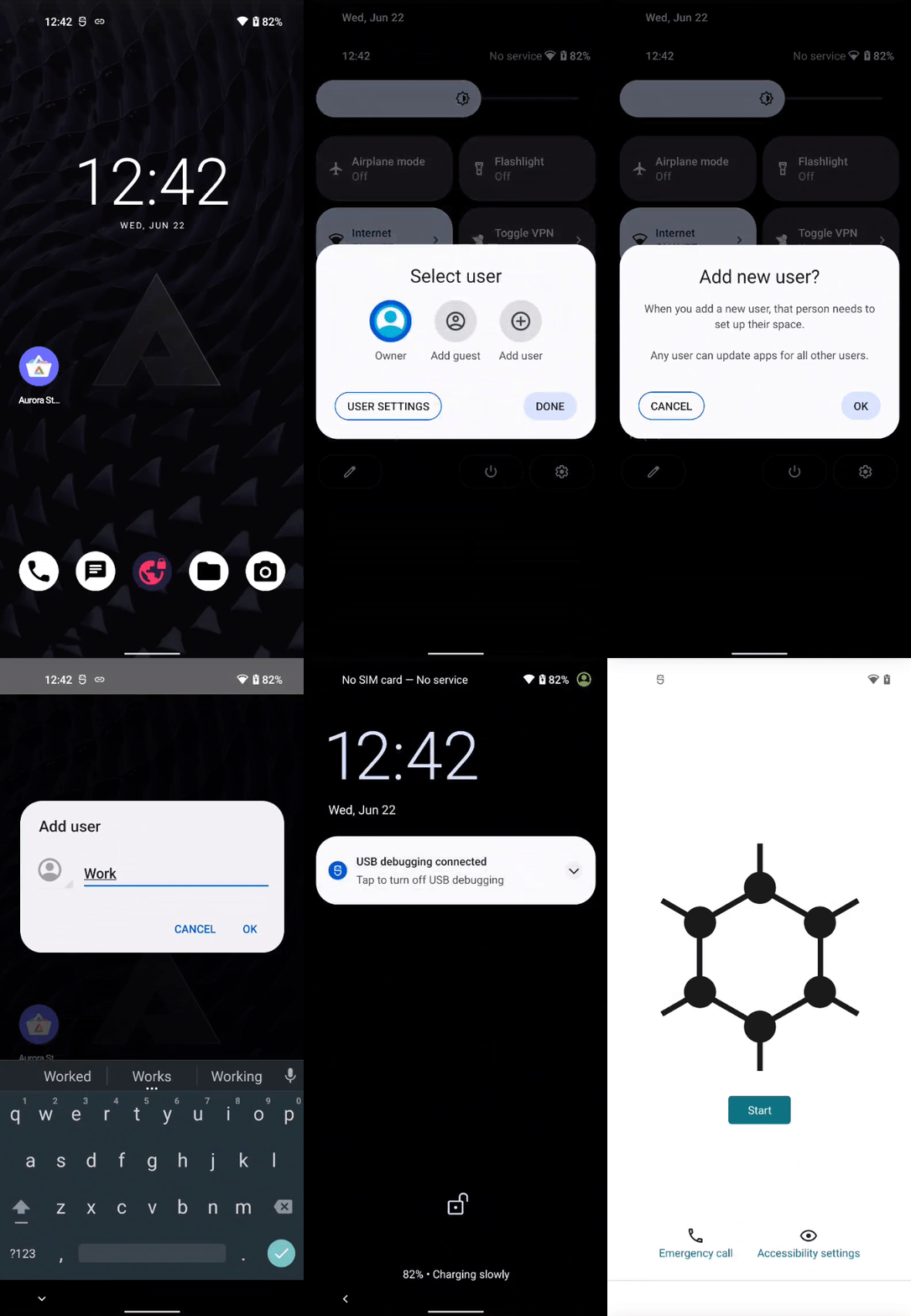
Now, to setup and manage the different profiles, you can also navigate through the device settings. In this example, we just pull down the notification bar and select the cogwheel to get to settings. In the settings, there is a handy search bar. We can just search 'profiles' here and it gives us a link straight to the setting of 'Multiple Users'.
This is where it is located:
Settings -> System > Multiple Users
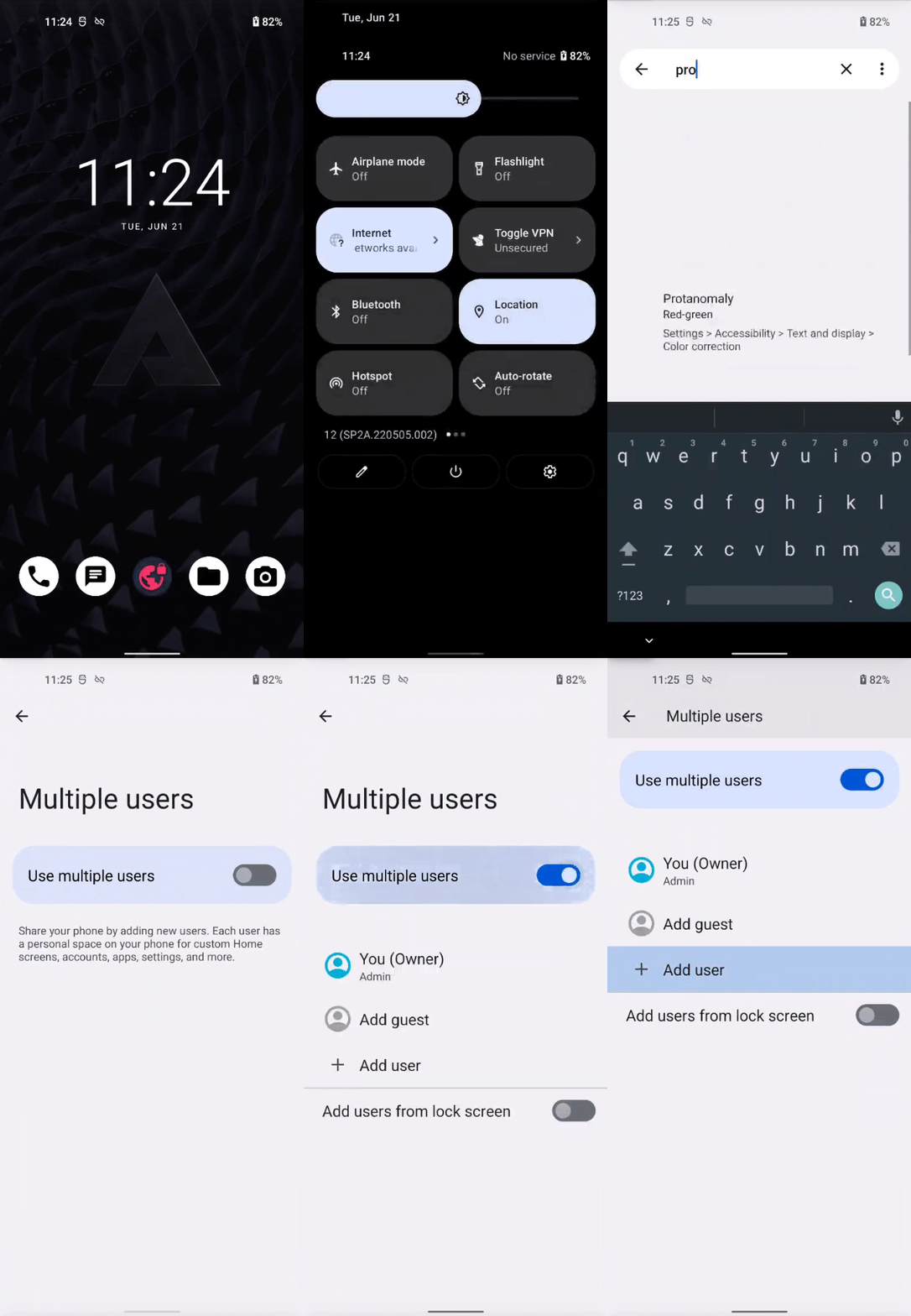
To make changes here, you'll have to activate the slider for multiple users. Then we can just create new users and name them accordingly.
In this example, we're choosing the name 'Work' to see how we could separate private from work life that way. (NOTE: this is not the same as an actual work profile)
When you set things up, you can decide whether this profile can use your SIM card to send and receive calls and SMS, or not. You can also restrict the possibilities to install apps.
Note that depending on your setting from the main user to allow another user to run in the background, switching the user like this would not end the session and keep the user active in the background.
Yet even if you allow separate users to run in the background, there is a also button to end the session.
After that, you will be welcomed by a fresh Android system installation (in this case GrapheneOS) to set everything up.
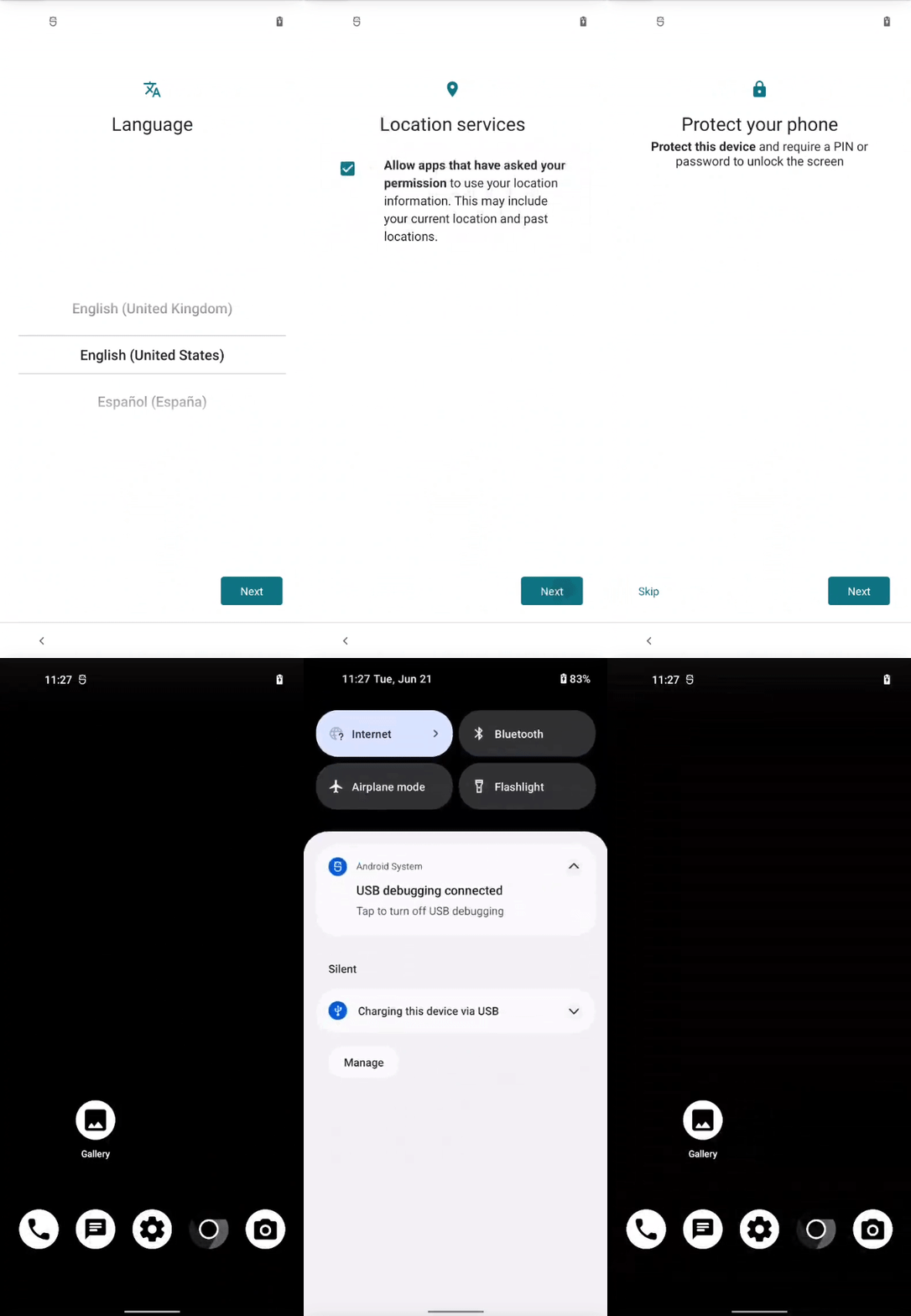
Ready!
Now you're good to go. You have a fresh isolated installation, with only the default system apps existing by default.
If you want to install other apps, you'll have to install the specific app stores, like F-droid and Aurora Store. Be aware that this is a completely blank workspace - which is the point in order to keep data from your main profile isolated. It means that you'll have to (re-)install the apps you want to use isolated and transfer the data you need to this profile.
Installing Google Play Services
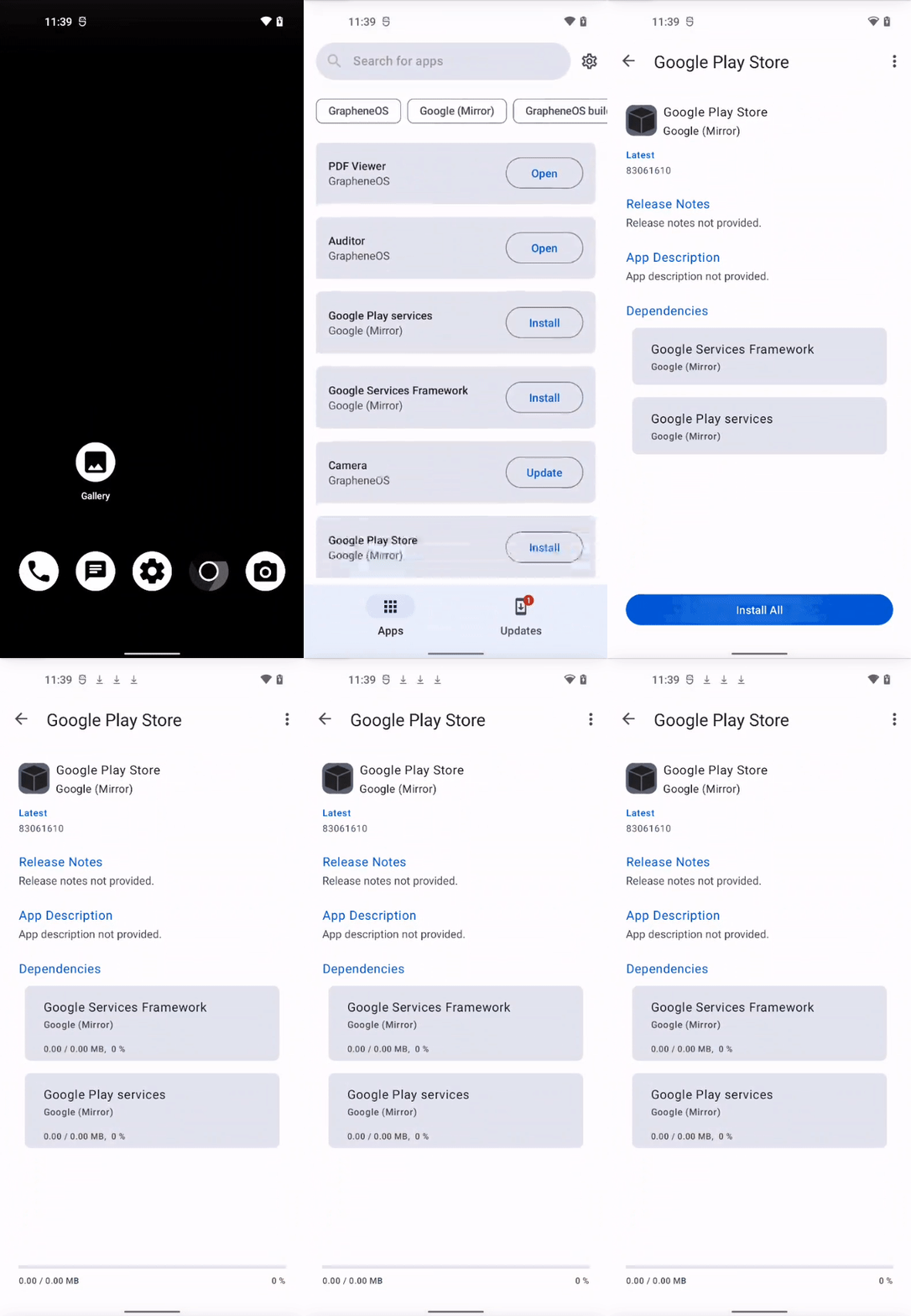
For GrapheneOS, there is a special way to install a completely isolated instance of the Google Play Store (click here to learn more). You get those modified Google apps directly in the GrapheneOS integrated app store, called 'Apps' with a black-and-white symbol of a cube.
For the Play Store to work, you will also have to install Google Play Services.
This will also make it possible for you to use various apps, that rely on the Google Play Services (Uber, Netflix, ...) in a more private way.
Switching between profiles
To switch between your different profiles, you can again just access the icon of the person from the notification panel as shown in the beginning.
Swipe down twice from the very top of the screen to find the 👤 person icon at the bottom.
Note that depending on your setting from the main user to allow another user to run in the background, switching the user like this would not end the session and keep the user active in the background.
Yet even if you allow separate users to run in the background, there is a also button to end the session.
Ending the session
To shut down the 'Work' session we created, you can either hold your power button, or pull down from the top to click the shutdown icon.
You will get an option to 'End session'.
Delete user profile
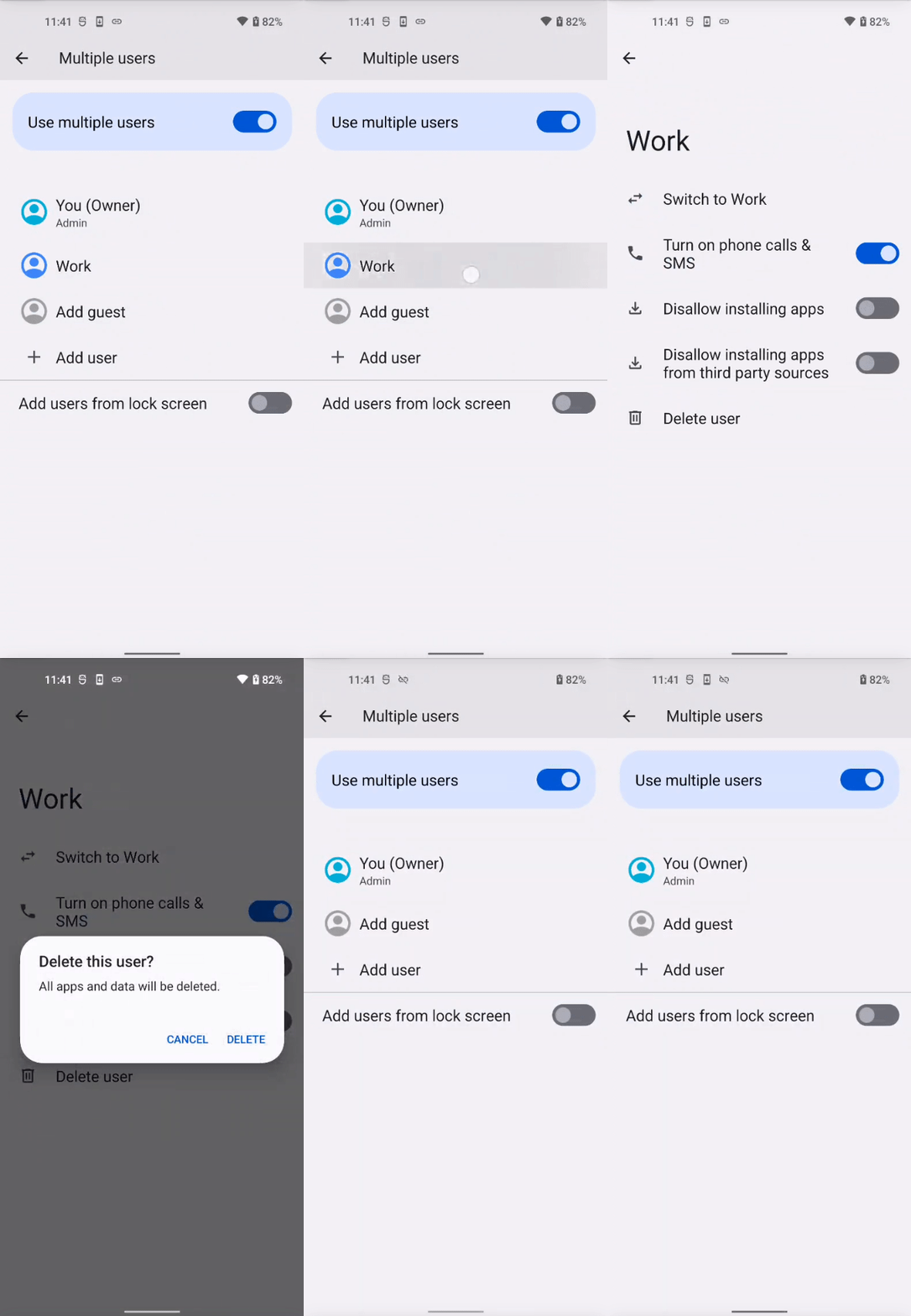
If at any point you want to delete one of the created profiles, just navigate to Settings > System > Multiple Users again.
Here, select the profile you want to delete and then hit 'Delete user'.
The whole profile, with all the apps and data stored within it will be wiped.
This is how you can deal with user profiles.
If you want a different and arguably more convenient approach specifically to isolate untrustworthy apps and be able to deactivate them quickly, take a look at our article on how to setup and manage a Private Space or a Work profile by following the links below.