Internet
<— Return to: https://learn.above.im/s/12aef602-75ec-4367-b619-07ad051e2a6f/doc/connectivity-n1pg9FIJ8v
—> Next lesson: https://learn.above.im/s/12aef602-75ec-4367-b619-07ad051e2a6f/doc/wifi-hotspot-81LajC7azO
In this quick guide, you'll learn the three main ways to connect your Above Phone to the internet: a wired connection using an Ethernet adapter, a Wi-Fi network, and mobile data via a physical SIM or eSIM. Each method offers its own advantages, and we’ll walk you through how to set them up and when each is the best choice. You’ll also learn how to limit your device to 4G (LTE) networks to avoid 5G connectivity, which can help reduce EMF exposure.

Connecting to WiFi
Connecting to WiFi
Connecting to WiFi
Swipe down from the top of the screen to open Quick Settings
Tap on Internet
Make sure WiFi is enabled (slider highlighted and flipped to the right), then select your desired network.
Enter the network password and tap Connect.
Once connected, you should see the WiFi icon appear in the top-right corner of the screen.

Connecting to Ethernet
Wired Connection (Ethernet)
Connecting to Ethernet
Plug the Ethernet Adapter into your Above Phone’s USB-C port.
Connect an Ethernet Cable to the adapter.
Plug the other end of the cable into your modem or router.
Once connected, you’ll see an icon appear in the top-right corner of your screen, confirming the wired connection is active.
To eliminate all wireless emissions from your device, use the Quick Settings panel to activate Airplane Mode. This will disable all wireless technologies ensuring the phone emits no EMFs.
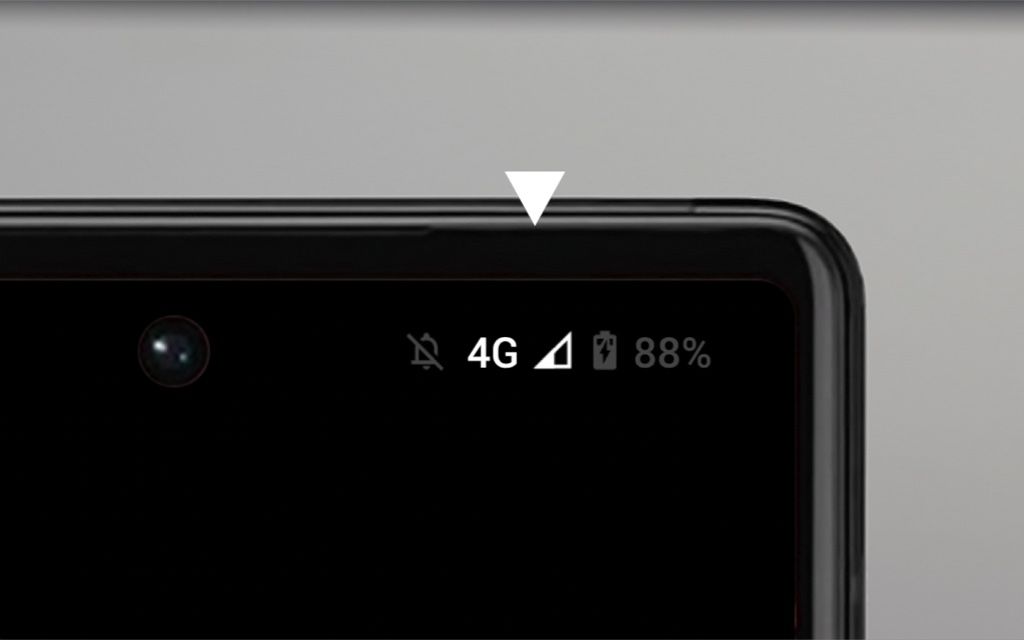
Mobile network indication
Connecting to Mobile
Mobile network indication
For a more detailed walk-through on connecting to mobile networks, check out our step-by-step guide: Click here.
Prioritized usage
Note that there is a certain hierarchy to which connection is being used.
Sorted from top to lowest priority:
Ethernet —> WiFi —> Mobile data (SIM cards)
Ethernet and WiFi connections are usually unmetered, which means they are not limited to a certain amount of traffic within a given time frame
Mobile data is often times limited and depends on how much data traffic your provider would grant you based on your plan.
Note that the OS and specific apps allow to prevent certain functions to run automatically run, depending on which network is in use.
Example: OS & app updates (App Store, F-Droid, Aurora Store, …) can be set to only happen automatically with ‘Unmetered’ networks.
This will allow you to not drain your limited mobile data unwillingly.
More info here: Usage tips