CoMaps (Organic Maps)
<— Return to: https://learn.above.im/s/12aef602-75ec-4367-b619-07ad051e2a6f/doc/default-apps-overview-J7XoIz4nNy
<— Previous lesson: https://learn.above.im/s/12aef602-75ec-4367-b619-07ad051e2a6f/doc/cheogram-xmpp-taqOKhOKN5
—> Next lesson: https://learn.above.im/s/12aef602-75ec-4367-b619-07ad051e2a6f/doc/davx5-nRzIPEQk06
Note: CoMaps may not be installed by default on your Above Phone - you can get it here via F-Droid
CoMaps is a fork of Organic Maps and can basically be seen as a lightweight & faster version of https://learn.above.im/s/12aef602-75ec-4367-b619-07ad051e2a6f/doc/osmand~-lMx7NydOVo. It is fully open-source with community-driven maps for travelers, tourists, cyclists & hikers.
It describes itself with these words:
CoMaps is a privacy-focused offline maps & GPS app for hiking, cycling, biking, and driving. Absolutely free. No ads. No tracking. Developed with love by the open-source community and the same people, who created MapsWithMe/Maps.Me app. Powered by OpenStreetMap data.
'Offline' means that you will be able use the program fully without being connected to the internet - which also means, that you have to download the maps you want to use in advance. Don't worry - it's easy. We'll show you how in a bit. Like https://learn.above.im/s/12aef602-75ec-4367-b619-07ad051e2a6f/doc/osmand~-lMx7NydOVo It draws its map data from community driven initiative OpenStreetMap.
Here's the features list taken from their own page:
Free, open-source, no ads, no tracking
Detailed offline maps with places that don't exist on other maps, thanks to the OpenStreetMap community
Cycling routes, hiking trails, and walking paths
Contour lines, elevation profiles, peaks, and slopes
Turn-by-turn walking, cycling, and car navigation with voice guidance
Fast offline search on the map
Bookmarks export and import in KML, KMZ & GPX formats
Dark Mode to protect your eyes
Countries and regions don't take a lot of space
Now let's take a closer look on how to access all of that on your Above Phone
Installation
If you don’t have CoMaps installed yet, you can get them both from F-Droid Basic.
Open F-Droid and update the repositories by swiping downwards in the middle of the screen
Once the repositories are up ro date (you should see the list of apps updated), tap the green 🔍 search button at the bottom right.
Tap on the text field right at the top to bring up the keyboard - type in comaps (not case sensitive)
Tap the blue button to start initiate the installation
Once it says Open, the app is installed and ready to be used.
Initial setup & usage
We can launch the app from the icon, either from the application drawer (swipe up on home screen), or from the shortcut in the 'Navigation' folder we created on your Above Phone, as shown here:
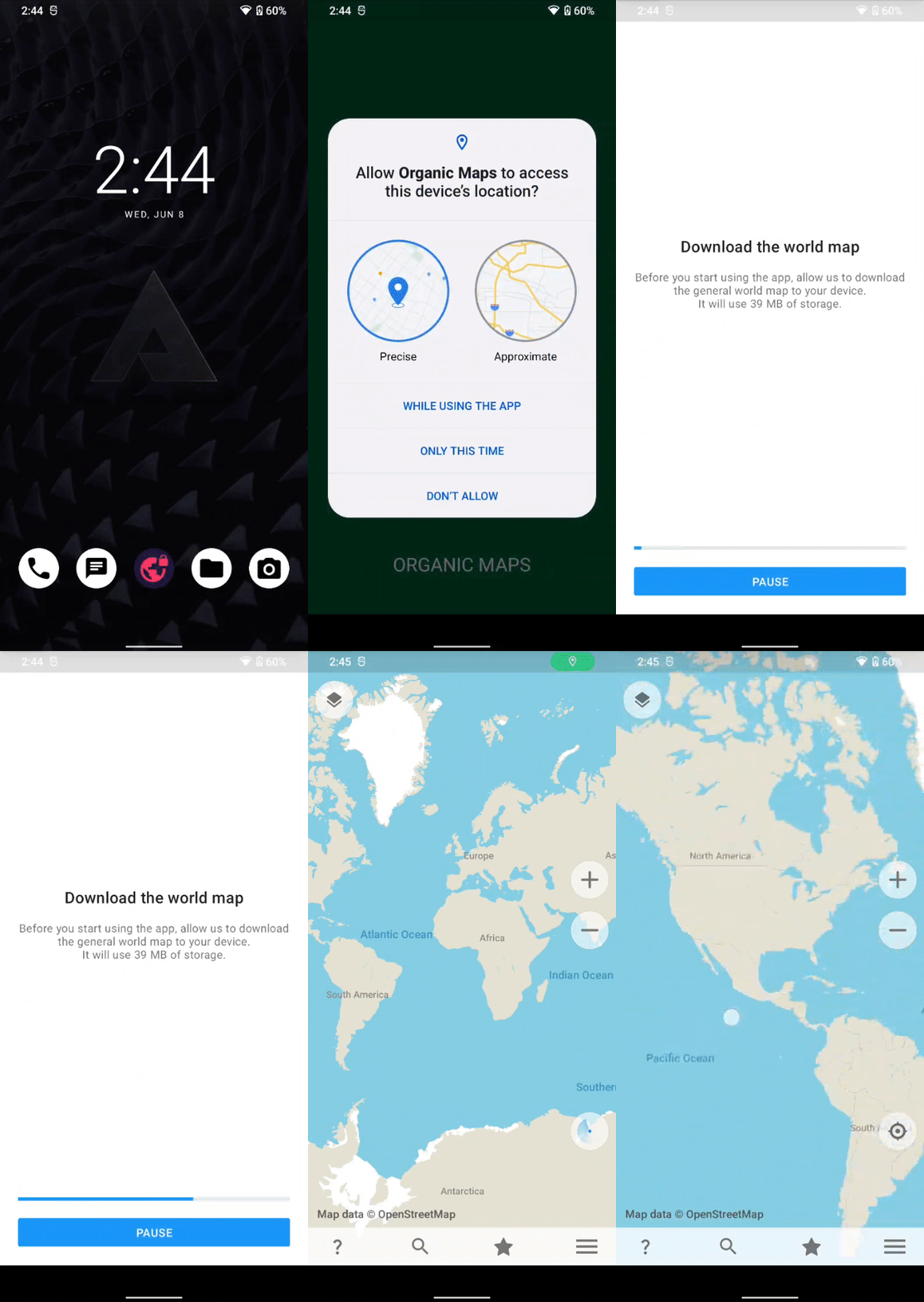
First, in order to have a map to start with, you will be prompted to download the world overview map. It is about 50 MB in size.
At some point you may be prompted by the application to get your location. If you want to use the app for real-time navigation, this is obviously a requirement.
Tap on While using the app for precise location access.
Once that is done, you can generally already start using the app. However, if you want to zoom in close to any location you didn't download the map for yet, you will first be asked to download the according map.
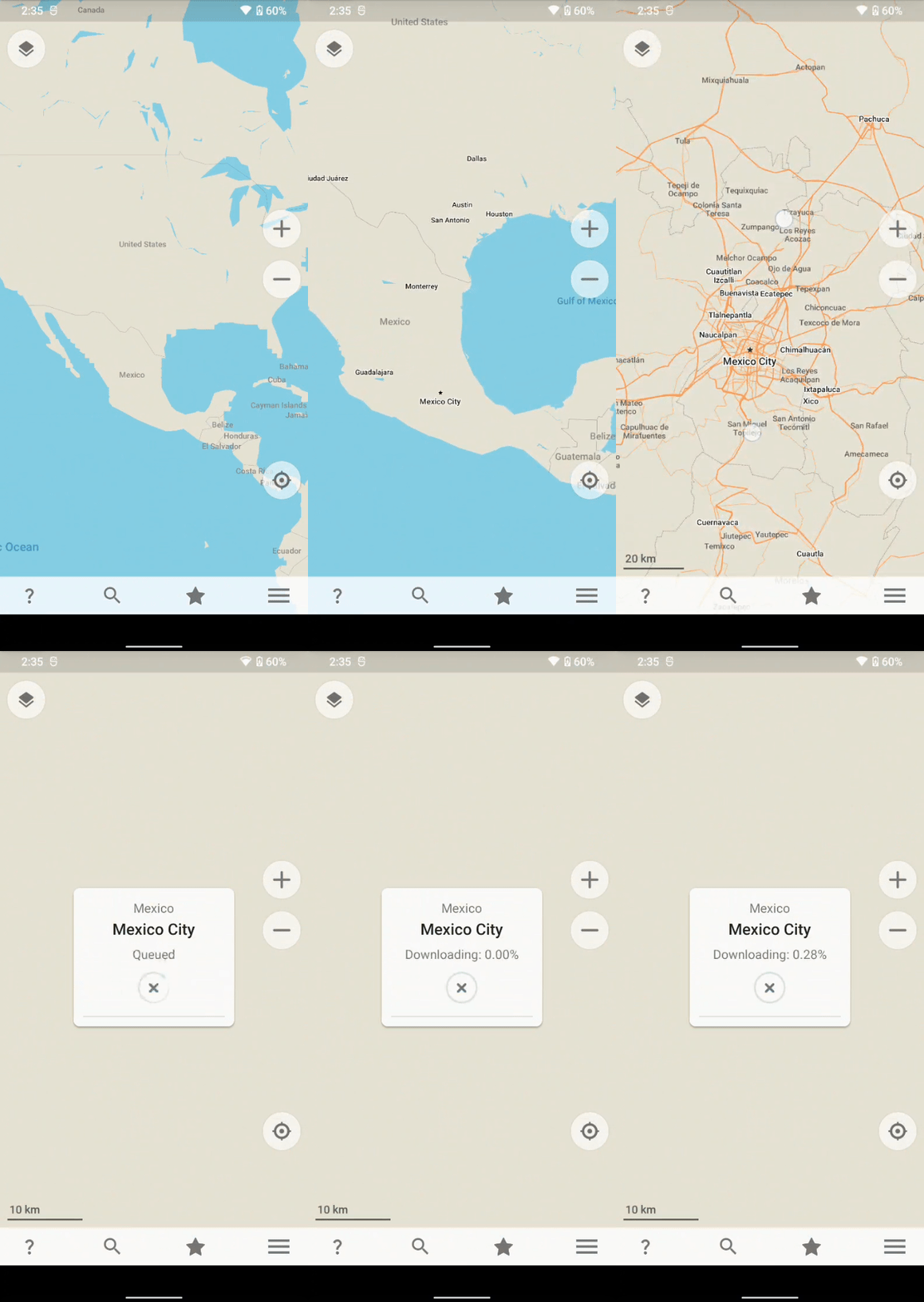
In this example, we are downloading the precise map for Mexico City, which is 172 MB in size.
To download any available map, click on the ☰ three bars towards the bottom right and tap on Download Maps, as shown here:
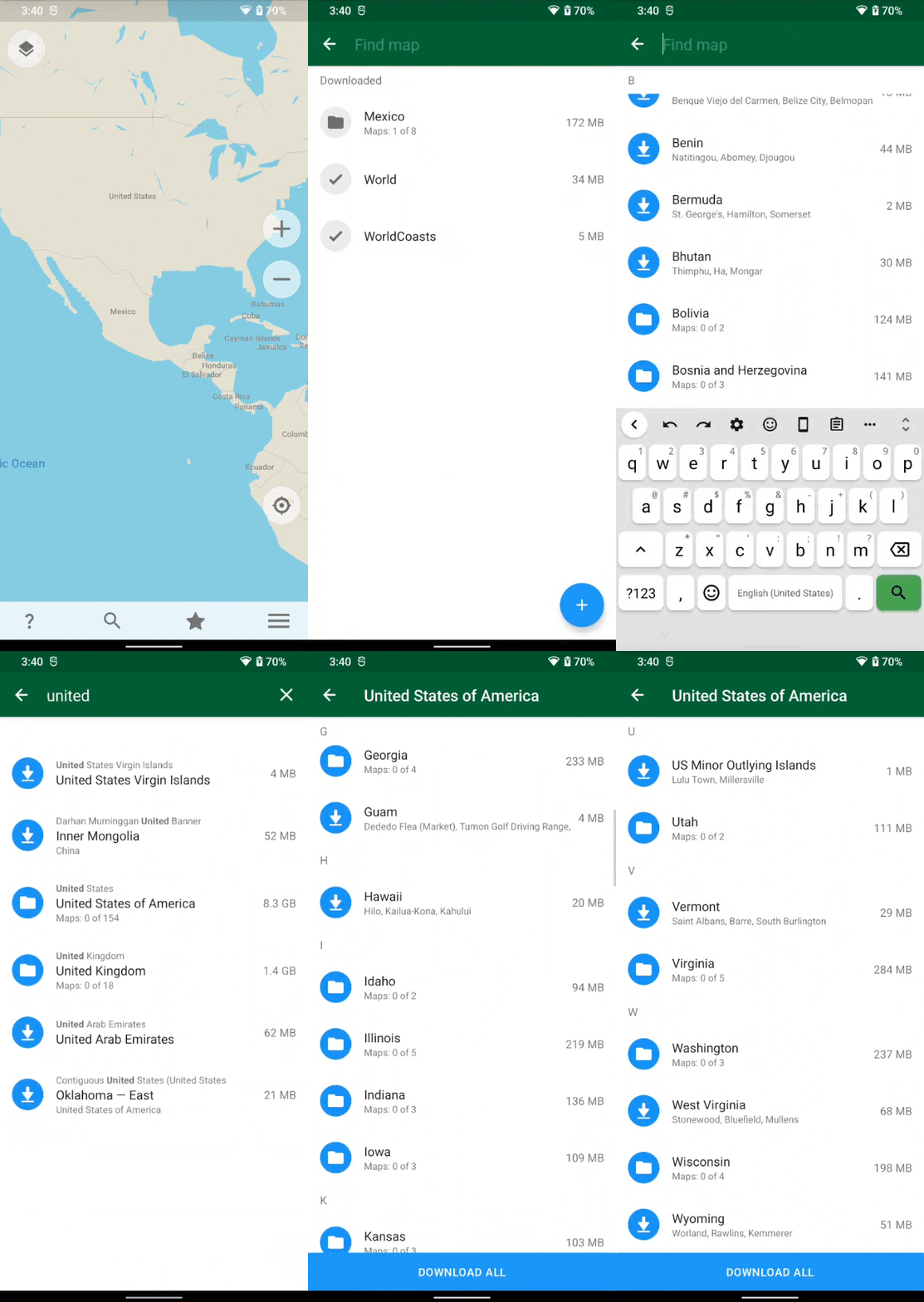
As shown in the animation, if you want the detailed map of all of USA for example, it will occupy quite a bit of storage (14.4 GB nowadays). You can also just download separate states or areas.
You can go ahead and download the areas, that are most relevant to you. But again: be aware that each map will use up space on your storage, which can be substantial, depending on the size of the area.
Once a detailed map is downloaded, it will be ready to use without any further steps - it will look something like this:
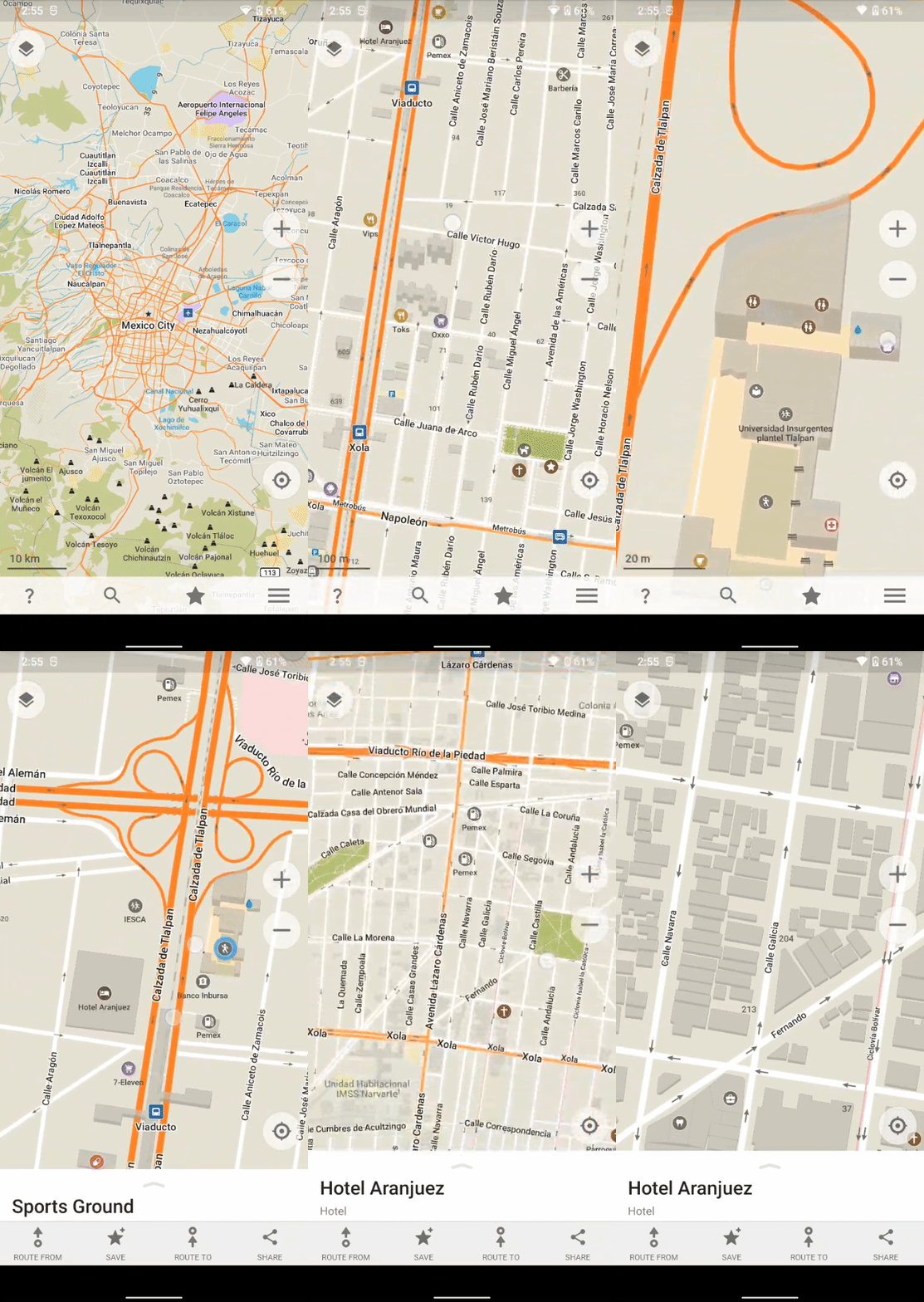
As you can see, the closer you get, the more details pop up. For cities, it's often possible to display subway lines on the map:
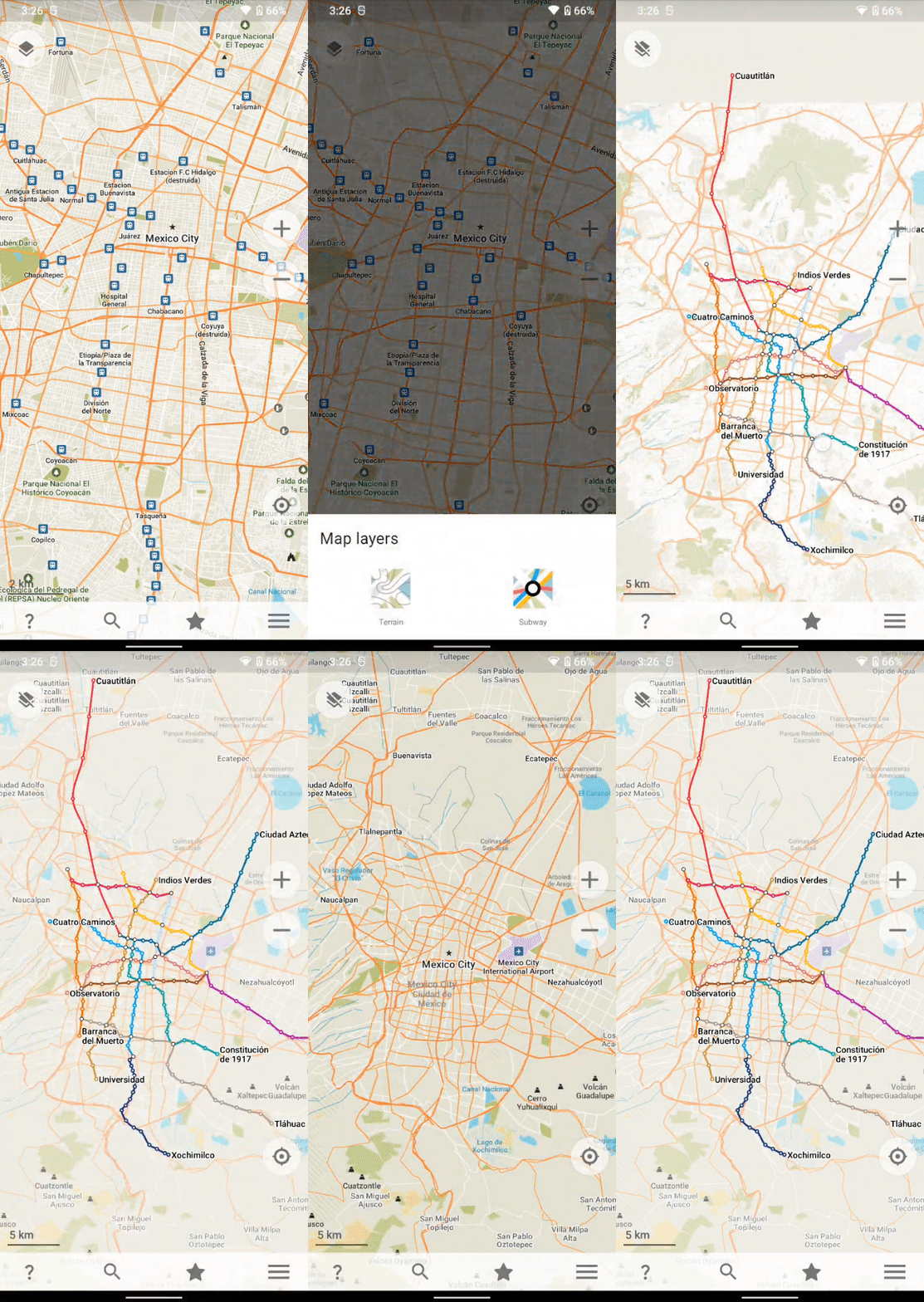
To change the map view that way, tap the icon on the top left. On the bottom, you can select different views: in this case 'Terrain' or 'Subway'.
Searching
Next, we'll take a look how to search for places and find specific things.
Tap on the 🔍 magnifying glass towards the bottom to open the search features. You can specify an address, or the name of a place right here.
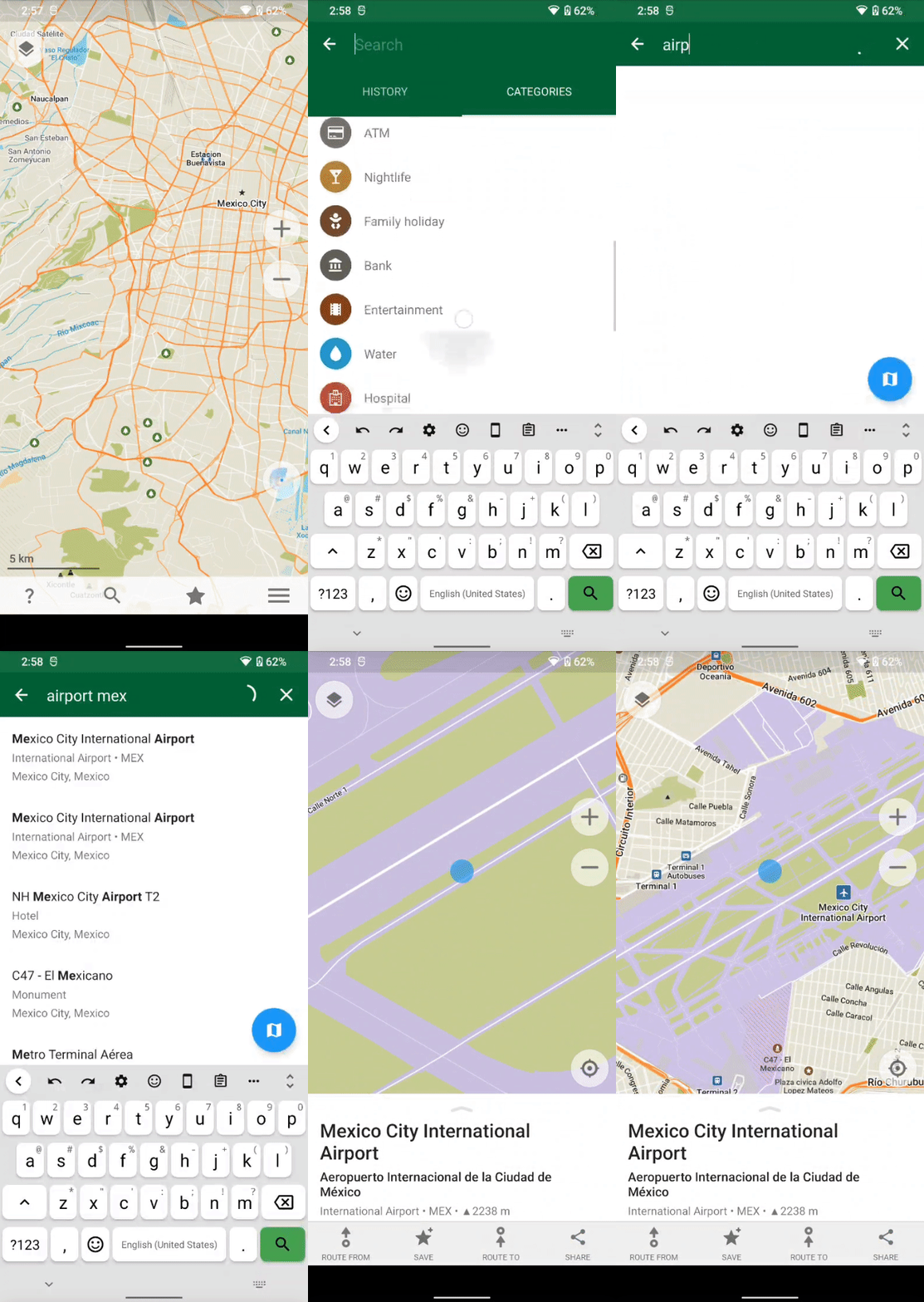
Once you found what your looking for, just click it and you will be taken there directly on the map.
You can also find things according to categories.
In this example, we look for ATMs in Mexico City:
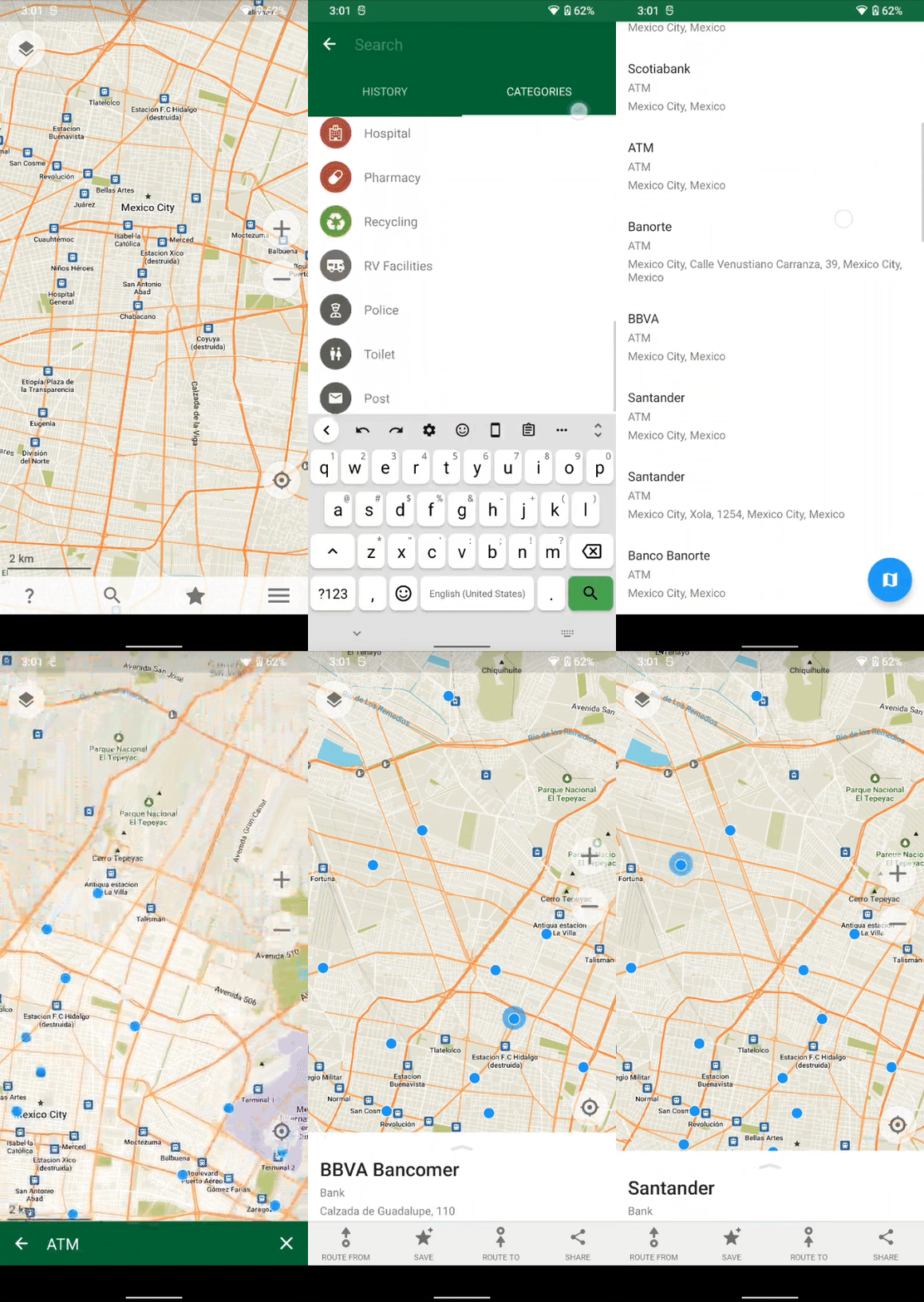
It will highlight all the ATMs as blue dots and give more information once you click any one of them. You can also directly save or share these spots, or plan a route from/to it.
Next we'll show how to share locations with your contacts.
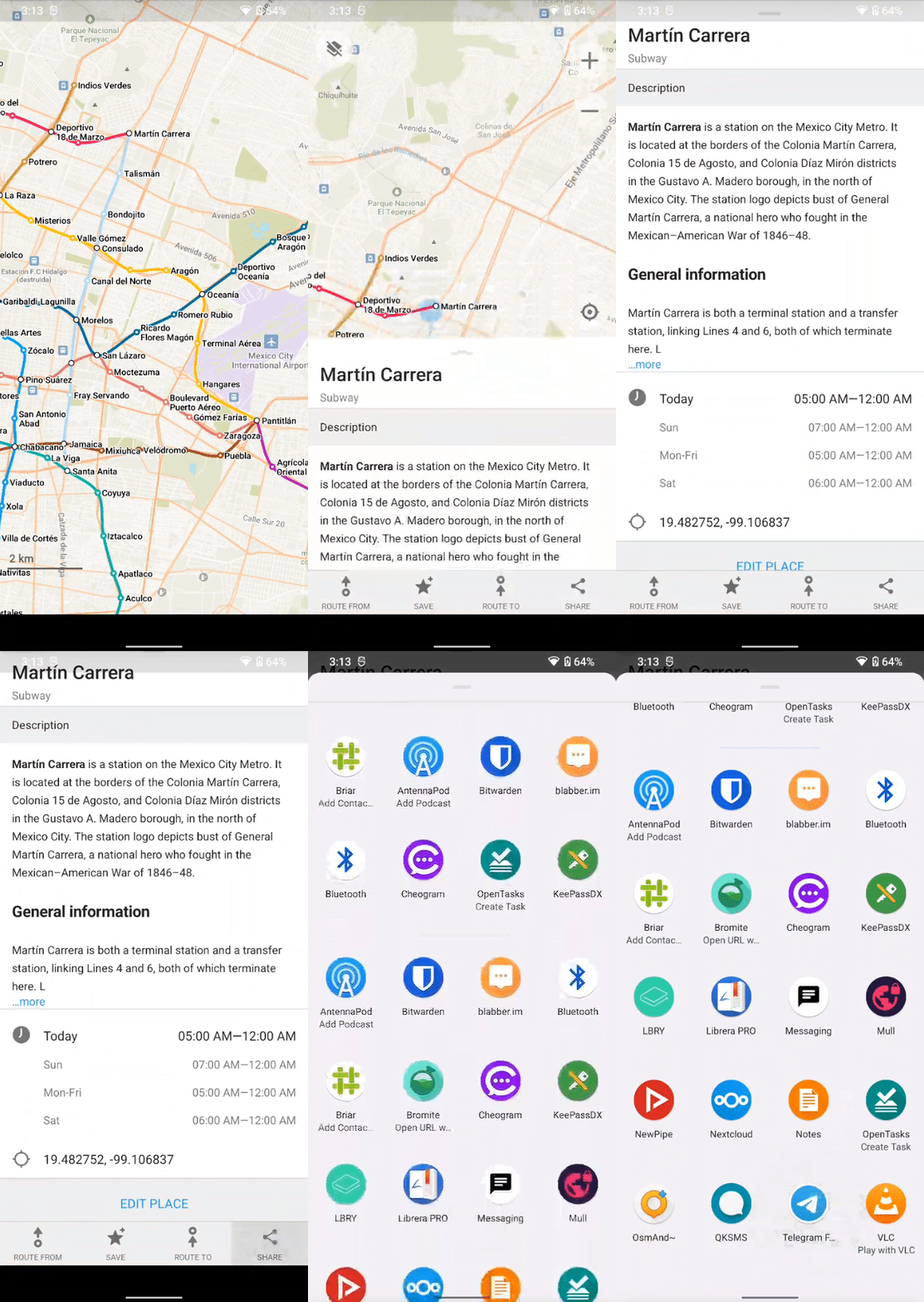
CoMaps makes this easy for us. As soon as you select a spot on the map, the ⁖ sharing icon will pop up on the bottom right. Just click it to see different ways of sharing the information through other apps you have installed. You can also just hit 'copy' to get a automatically generated text with a link and coordinates to the location.
Bookmarks
To remember your favorite spots and have quick access to them, you can save them right to your bookmarks.
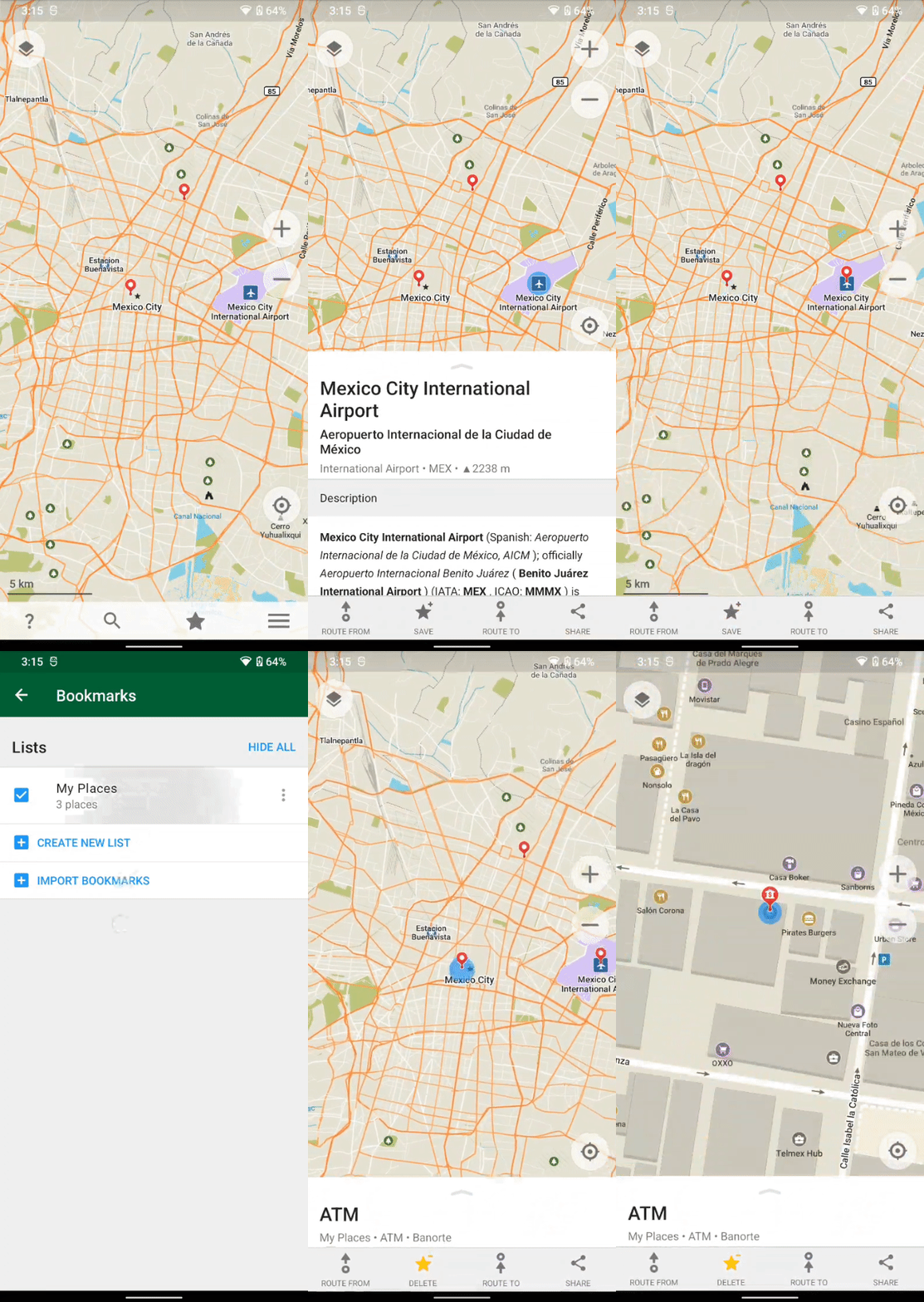
A saved bookmark will show itself as a red pin on the map, even when you're zoomed out far.
You can create Folders for different types of bookmarks, and keep things organized that way. It also possible to back them up into a small file and import them into any other fresh CoMaps installation.
Enabling Voice Prompts
Together with a text-to-speech (TTS) engine, CoMaps can give navigation voice prompts in real time.
We have a guide to help you get set up: TTS - Text-to-speech
Inside CoMaps, tap on the ☰ three bars at the bottom
If you don’t see any buttons, just tap somewhere on the map to reveal them.Tap on Settings
Scroll to Voice Instructions - It should be On,
If so, you are done with voice navigation setup
If it says Off, continue to the next step..
Inside the Voice Instructions menu, and simply toggle on the slider at the top for Voice Instructions
If the toggle is grayed out, be sure to set up your TTS engine first.
This is what the ‘Voice Instructions’ screen should show if everything is set up correctly.
Feel free to tap on Test Voice Directions to make sure everything is working.