USB thumb drive
<— Return to: https://learn.above.im/s/12aef602-75ec-4367-b619-07ad051e2a6f/doc/above-essentials-KkbCdqt7F7
<— Previous lesson: https://learn.above.im/s/12aef602-75ec-4367-b619-07ad051e2a6f/doc/audio-adapter-t37jt54bL4
—> Next lesson: https://learn.above.im/s/12aef602-75ec-4367-b619-07ad051e2a6f/doc/14-1-usb-c-hub-tAvfmK8bzl
The USB storage we provide is a dual USB thumb drive, which features not only a USB-C port to connect it directly to the phone, but also a legacy USB-A port to connect it to a computer for example.
Flip the thumb drive to use its other connector
With newer Android devices featuring the USB-C port, it is possible to directly connect a variety of USB devices. In order to do this, you'll need an USB-C to USB-A adapter. They look something like this:
USB-A to USB-C adapter
With this handy tool, you can actually connect many different USB devices (mouse, keyboard, flash drives, ... )
Note: The USB flash drive has to be formatted to exFAT or ext4 (or FAT32 on older devices) in order for the phone to be able to work with it. Be aware, that you might have to reformat it - in that case, be sure to back up all your data from the flash drive first!
To connect a flash drive, just plug the adapter in to your phone and then attach the flash drive right into the USB port. In effect, your phone should recognize the flash drive. A notification will appear right away, saying 'USB drive' for transferring photos and media. With the options to 'EXPLORE' or 'EJECT'.
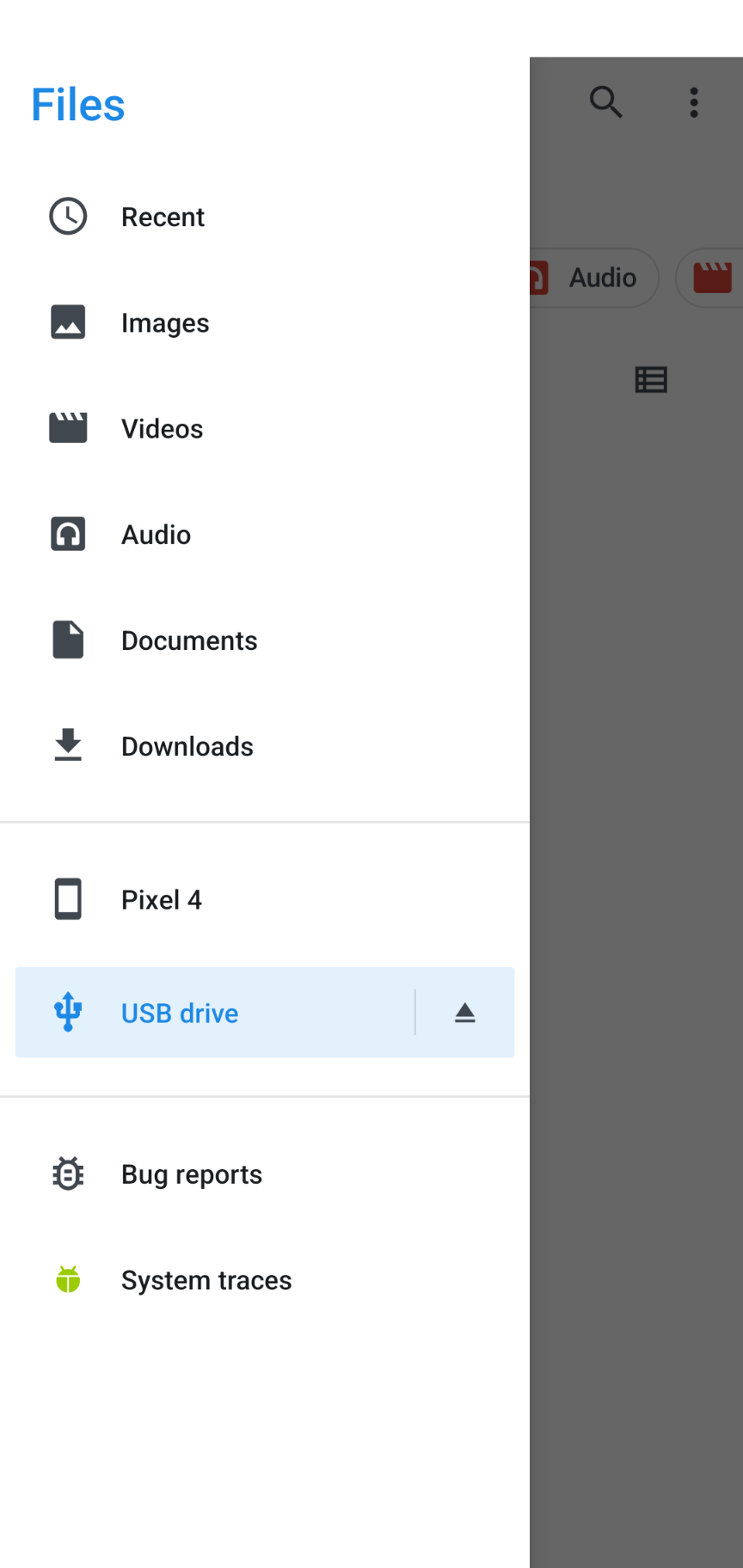
Open the sidebar inside the 'Files' app
The drive will also appear in your Files app we looked at earlier. Just click on the three horizontal lines for the sidebar to appear. There you can navigate to your USB flash drive and copy and move files to and from it.
Ejecting USB storage safely
In order to make sure your files don't get corrupted, you'll want to use the feature to safely eject a USB file transfer before you pull it out of the phone. Make sure that all transfers are finished - you can check in the notification section if there is any transfer pending.
There are two ways to eject safely - one is from the notifications:
Just pull down from the very top and look for the notification referring to your USB file storage. You may need to slightly swipe down within it to see all the details.
Eject shows on the right, next to Explore. Just tap on it to safely remove your USB storage.
Once it disappears from the list, you're good and can just unplug it from your device.
ejecting an external device from notifications
The other way is via the file explorer app (simply called Files).
Tap on the three bars top left to bring out the sidebar.
Right where your devices are listed there is a triangle type icon next to your USB file storage. Tap on it to safely eject your USB storage.
Once it disappears from the list, you're good and can just unplug it from your device.
hit this button to eject the external USB storage
Be sure that all file transfers are finished and no file on the USB storage is currently accessed to be able to safely eject USB storage.
Troubleshooting
If your USB storage doesn't get recognized it could be because of one of the following reasons:
The security settings restrict the USB type-c connection depending on your phone's state.
You can check these settings in:
Settings > Security & Privacy > Exploit Protection > USB-C portThe filesystem format is not recognized.
Note that while the phone can set up the right filesystem, this process will completely wipe all data on your USB file storage.
We recommend to use a FAT type of filesystem, preferably exFAT for universal compatibility with other operating systems.Your USB file storage will only get recognized in one user profile at a time. If you switched to a different user profile, you'll first want to (safely) remove the USB storage from within the user profile you were in when you connected it in the first place.