Jitsi Meet - Video Conferencing
<— Return to: https://learn.above.im/s/12aef602-75ec-4367-b619-07ad051e2a6f/doc/default-apps-overview-J7XoIz4nNy
<— Previous lesson: https://learn.above.im/s/12aef602-75ec-4367-b619-07ad051e2a6f/doc/heliboard-futo-qXK397XVG4
—> Next lesson: https://learn.above.im/s/12aef602-75ec-4367-b619-07ad051e2a6f/doc/k-9-mail-wd2aEGJAmo
—> Go deeper: https://learn.above.im/s/12aef602-75ec-4367-b619-07ad051e2a6f/doc/jitsi-on-computers-laptops-desktop-zps9zdODuu
General
Jitsi Meet is an open-source voice and video-conferencing application that can run on any smartphone or within a web browser. Jitsi is an excellent alternative to proprietary videoconferencing applications (Zoom, Skype, Microsoft Teams, Google Hangouts) and is open for anyone to use either as a host of a meeting or as an attendee.
Simply download the Jitsi Meet app to your phone from your preferred app store, or visit the Jitsi website to use the meeting software within a web browser. Users also have the option to run Jitsi on their computer by downloading the desktop version.
Above Privacy Suite (APS) customers using Jitsi Meet have all of the Jitsi Meet features, and also enjoy the added benefit of having their meeting instance hosted on Above's private Jitsi server. As a paid service, customer's using Above's private Jitsi server can rest assured that their meeting is truly private as Above does not log data either from the content of your meeting or any information about the participants involved. No data is ever captured/sold to any third party. Secure, end-to-end encrypted meetings riding on open-source software and hosted on a private server that does not retain or sell any information - the gold standard in private, secure communications.
1. How to create a meeting
Update: Since late 2023 the main Jitsi Server instance requires users to sign in. This can be circumvented by using a different publicly accessible instance, like jitsi.vern.cc or fairmeeting.net
To quickly get a list of Jitsi servers ranked by the speed it can offer you, use the Jitsimeter.
If you are subscribed to the the Above Privacy Suite, you can use our own Jitsi server at:
Use your Above Suite username and password to login to our Jitsi server.
To use a server as your default on your Jitsi Meet app on the phone, navigate to Settings inside the app and change the Conference URL to your desired server.
It is incredibly easy to create a Jitsi meeting in just a few clicks on your Above Phone.
We can simply test out if everything works by joining a new empty chatroom.
Just open the Jitsi app from the drawer.
Open the application drawer from the home screen by pulling up with your thumb
Tap on the blue Jitsi Meet icon to start the app.
From here it will directly allow you to create or join a chatroom. By default it will just create a generic room name with a random string of words.
Be aware of which Jitsi server is going to be used. To change it from the default, head to Settings first to change the Conference URL.
To create or join a room, simply specify the room name and click on the blue button saying CREATE / JOIN
You're set up to chat! Use the settings and buttons displayed to manage your Sound and Video input and output settings.
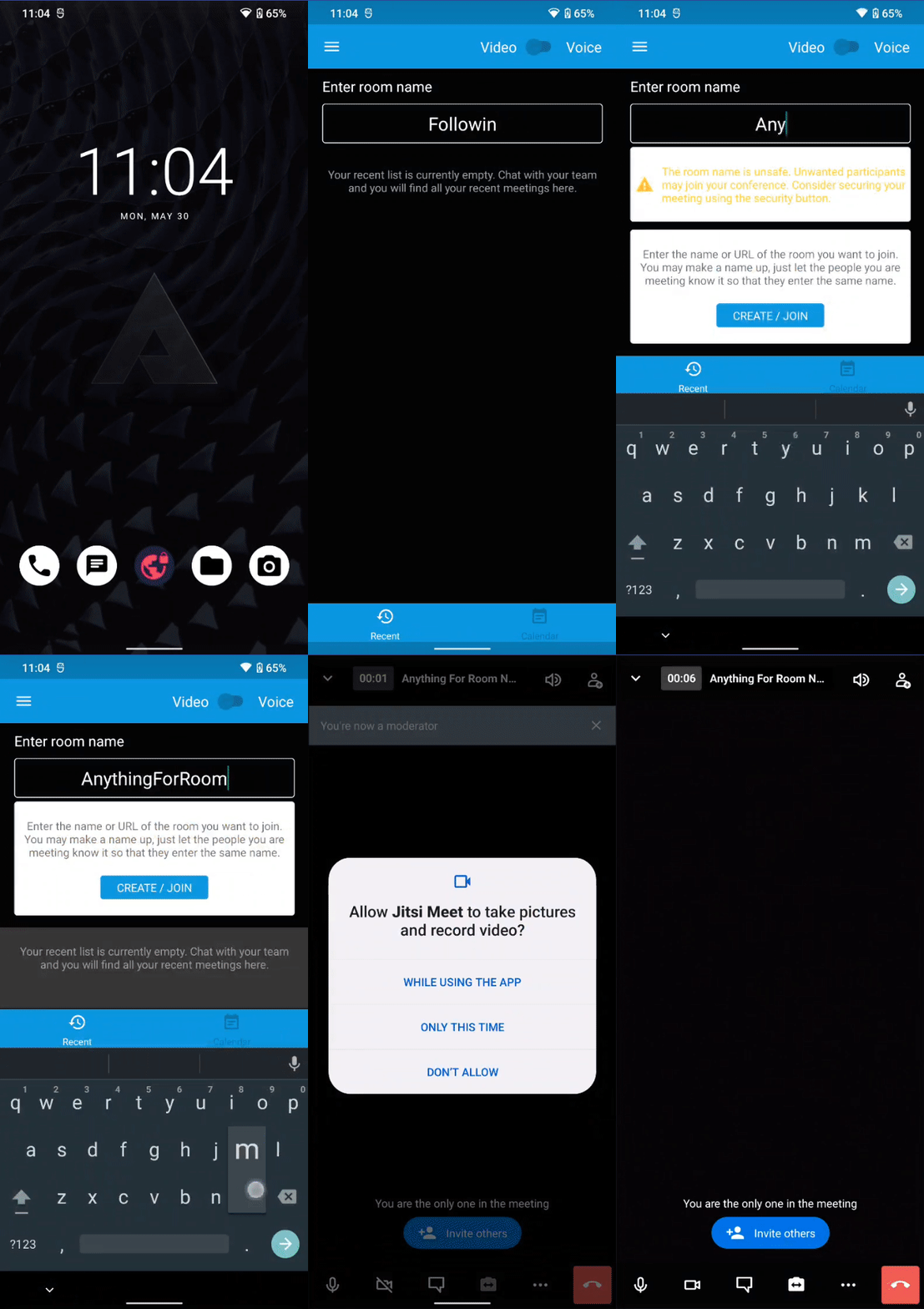
You can choose anything you want as your meeting name. This will also create a specific URL for anybody to join.
In this example, the created URL would be: https://meet.jit.si/AnythingForRoomName
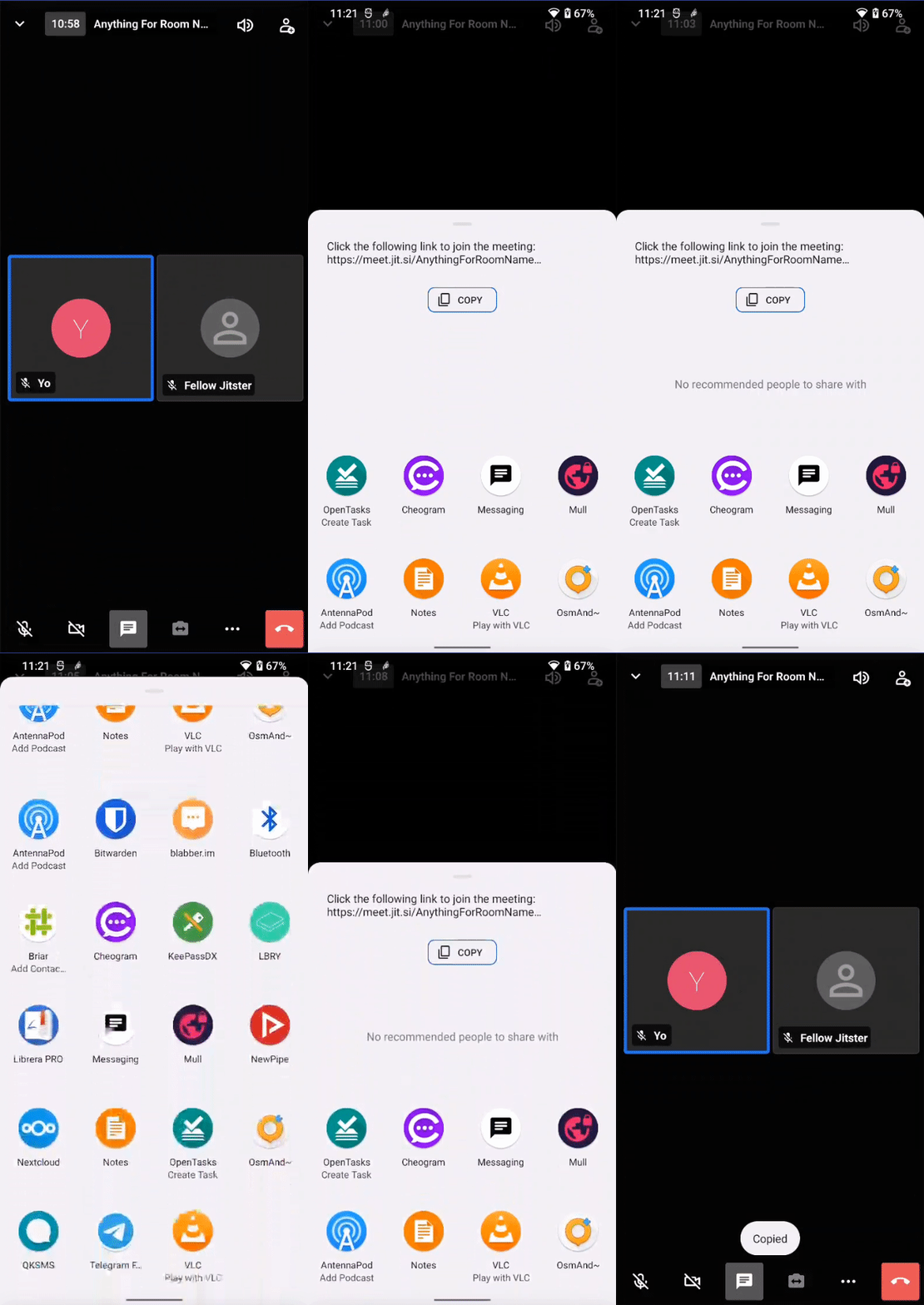
Apart from the URL, you can can also invite friends directly through various apps. Just click on the symbol in the upper right corner.
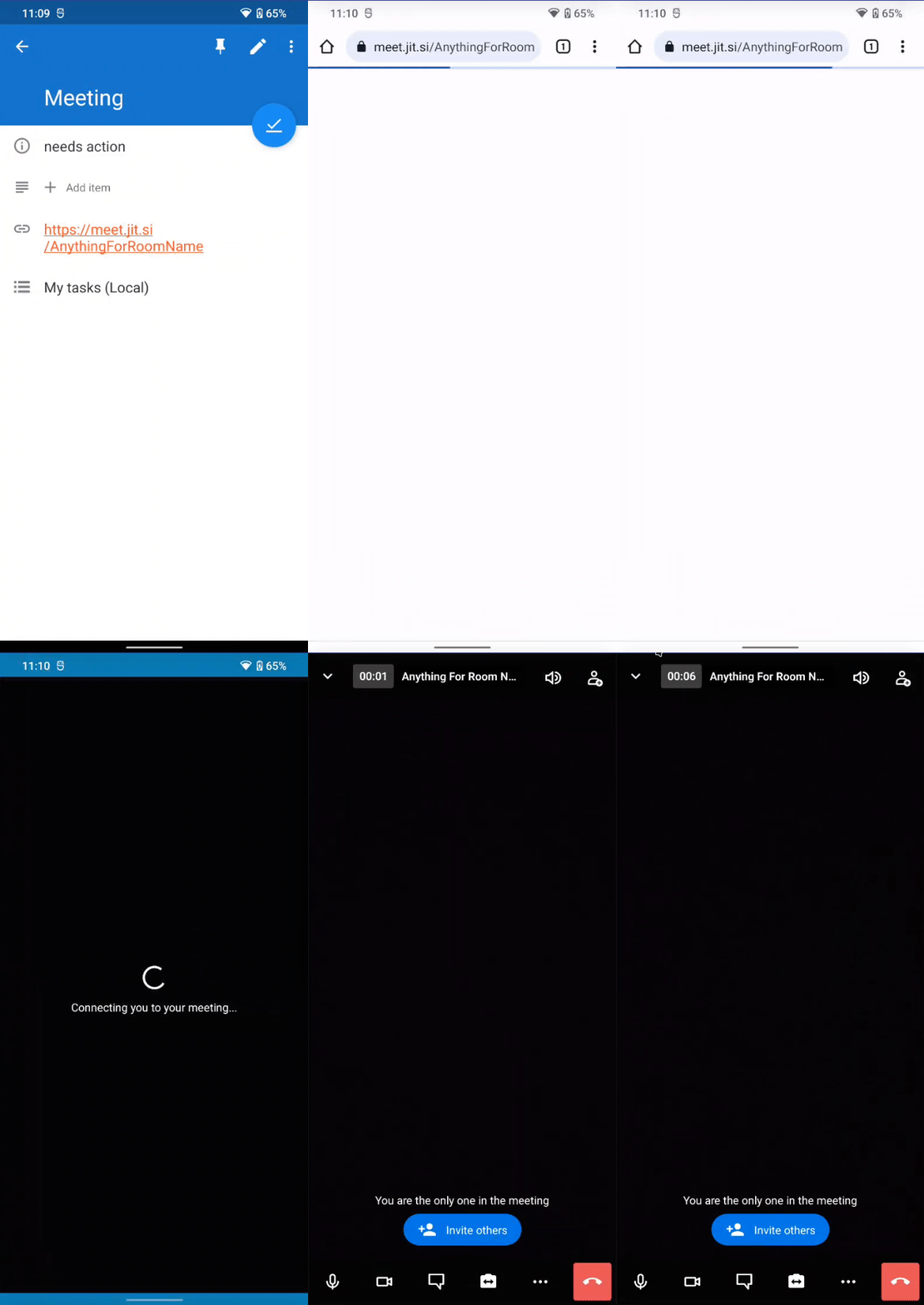
If you want to join a room through an URL, you can just open the link normally through the browser. From there, you will can be redirected to the Jitsi application and the specific room will be loaded automatically.
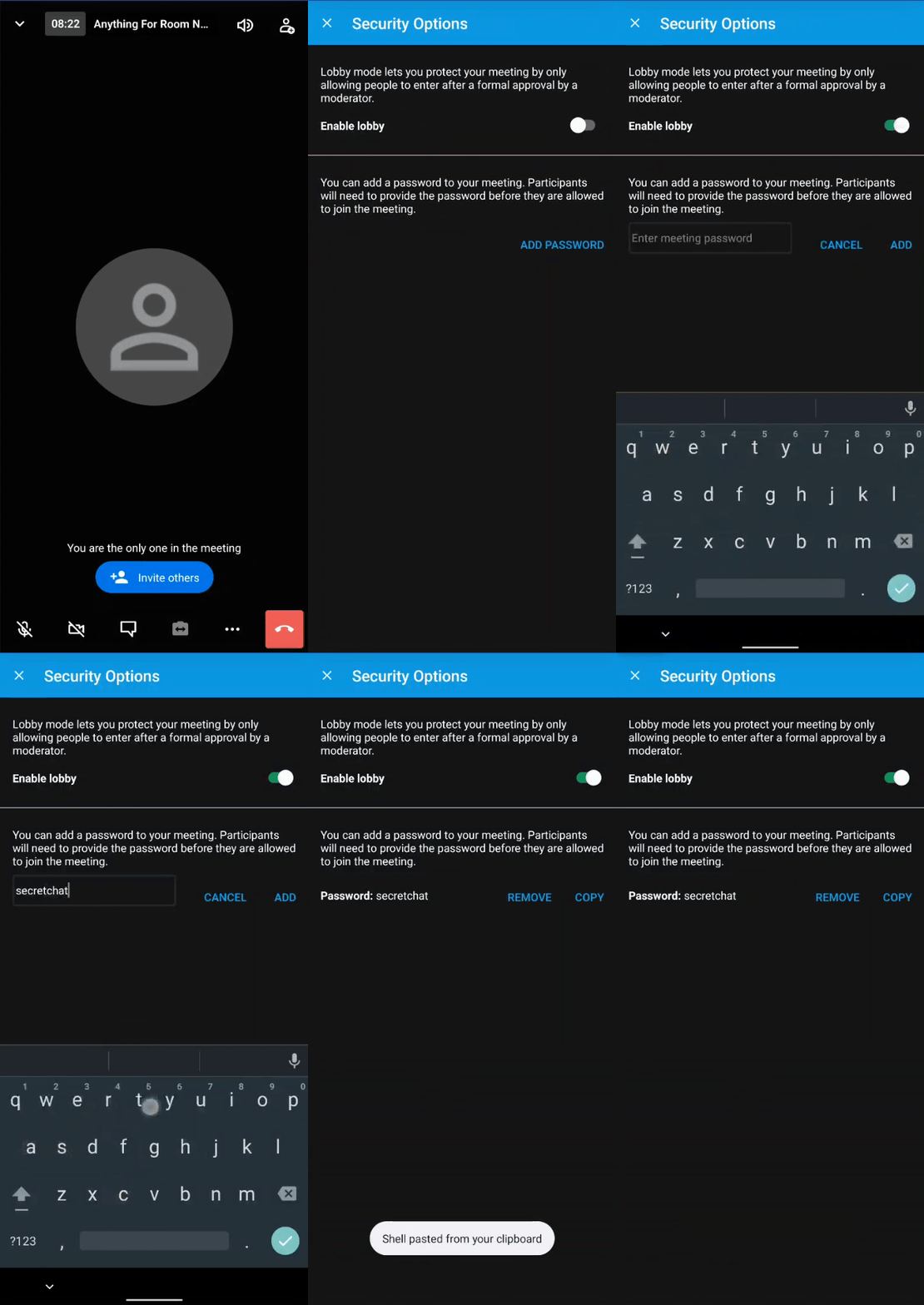
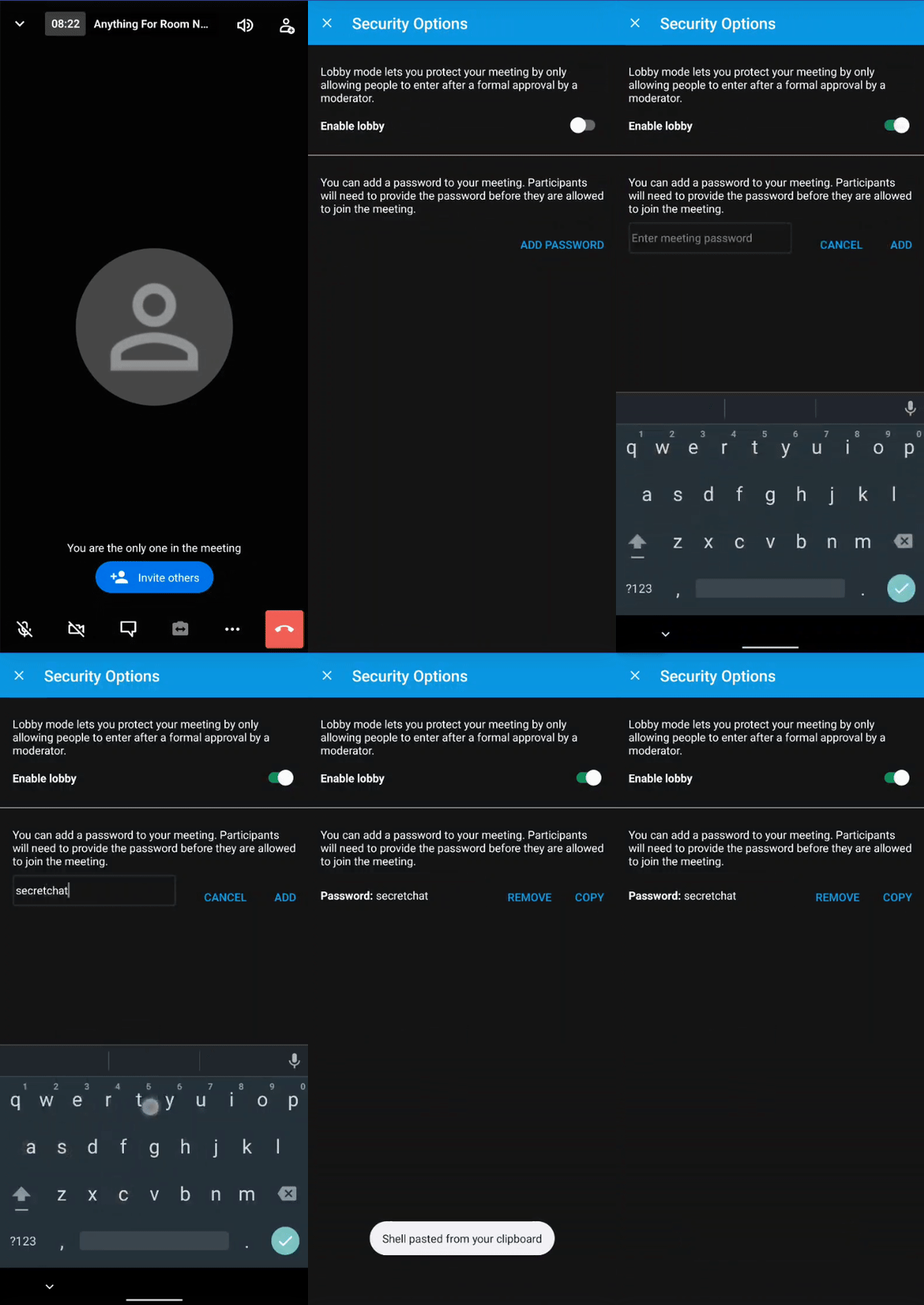
If you want more security in your chat room, you can set a lobby, where people have to enter a username first, as well as a password to be able to enter.
In this example, the required password to enter the chat would be secretchat
2. Jitsi Features - Audio & Video settings, Text chat, Screen Sharing and Video Sharing
There are a variety of useful functions you can access by the symbols on screen.
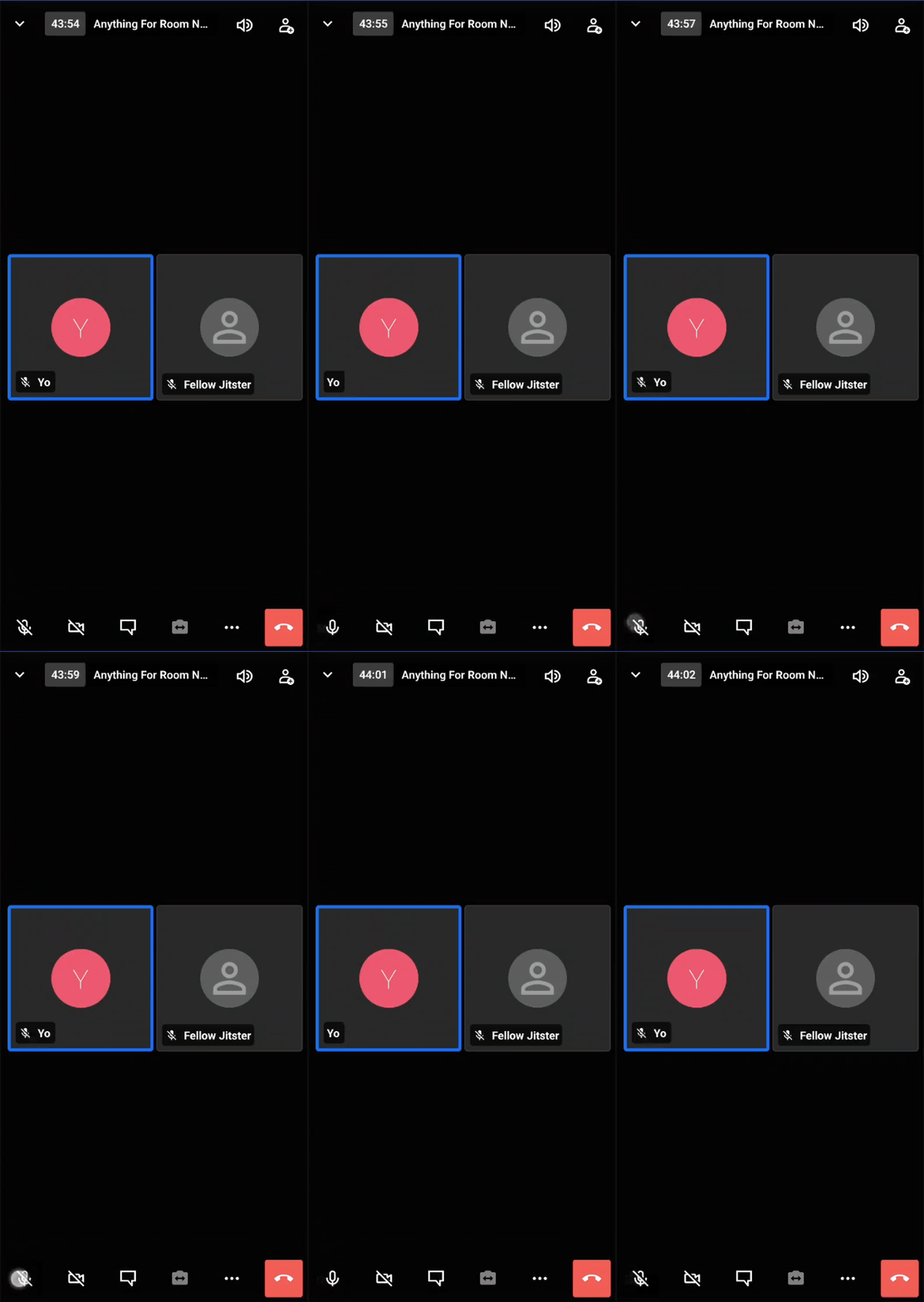
The first symbol on the left toggles the microphone on and off.
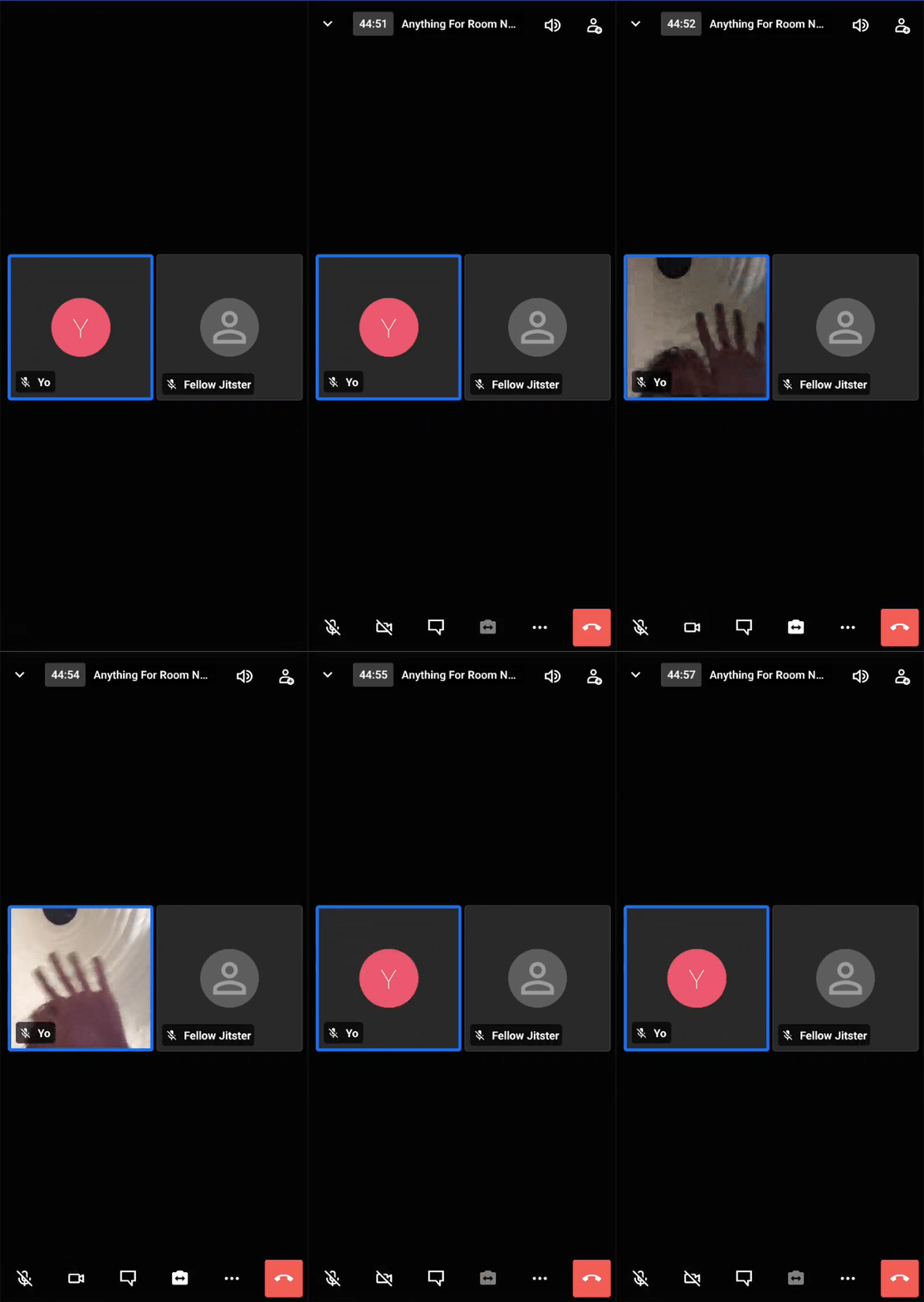
The second symbol toggles the camera on and off. When it's on, you can switch between front and back camera with the fourth symbol.
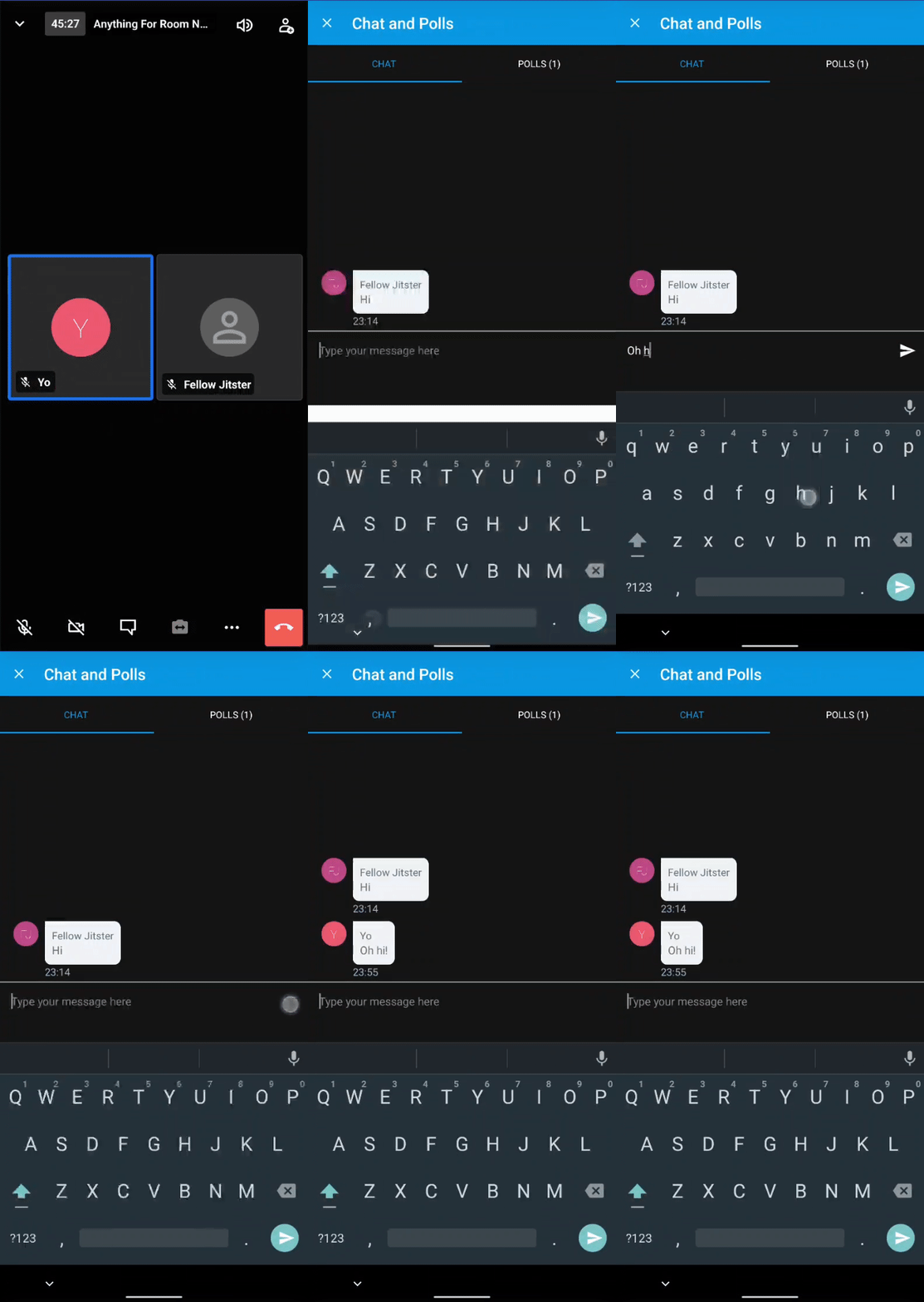
With the third symbol, you can open the text chat and exchange messages.
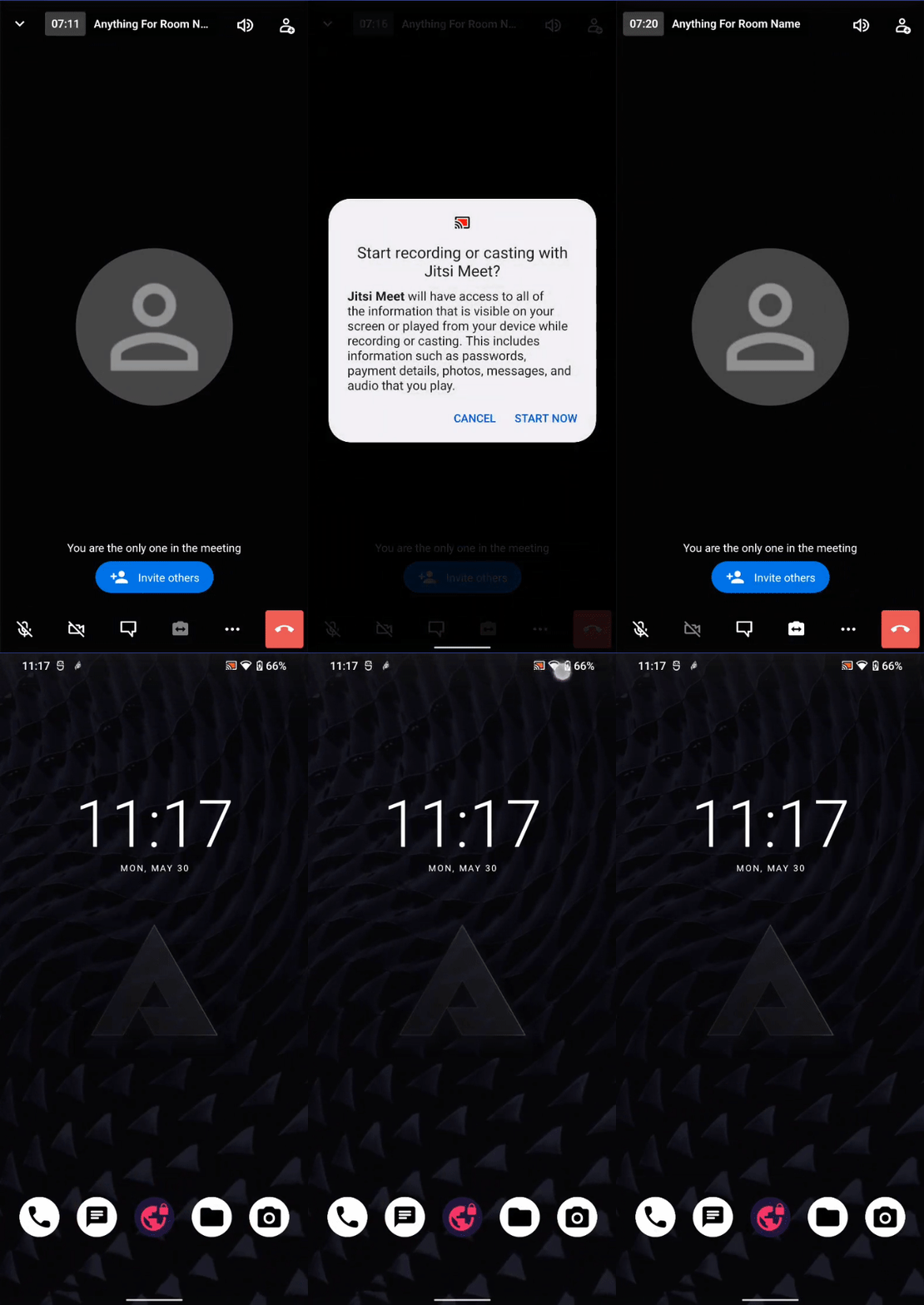
You can also share your screen. On the phone, you'll have to click on the three dots and then select 'Start screen sharing'.
(On the Desktop, screen sharing has it's own symbol.)
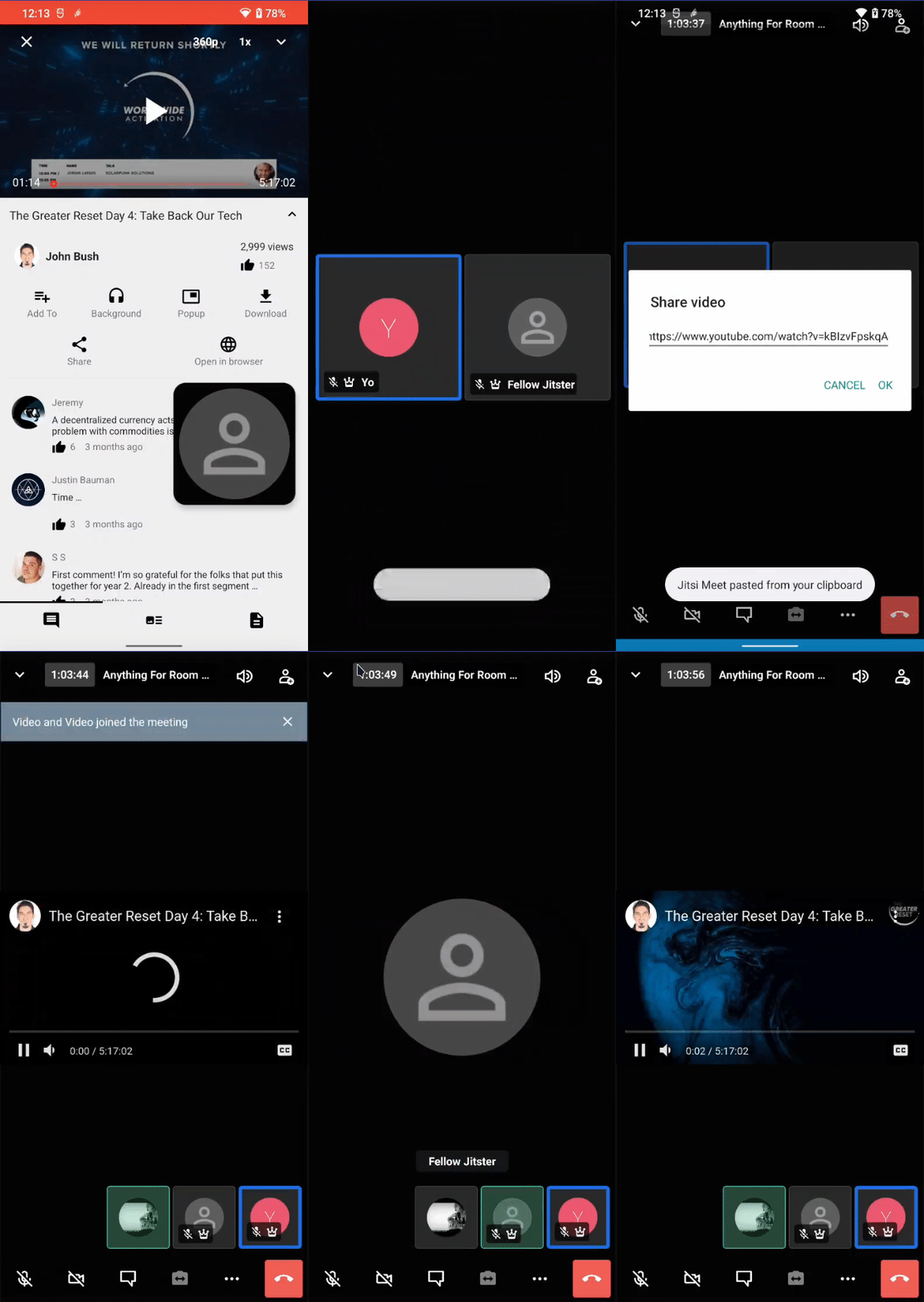
It's even possible to directly share a video (for example from YouTube) and watch it together in the chat room.
3. How to invite friends to your meeting
After you create your your Jitsi meeting, you can invite friends by clicking on the symbol in the upper right corner.
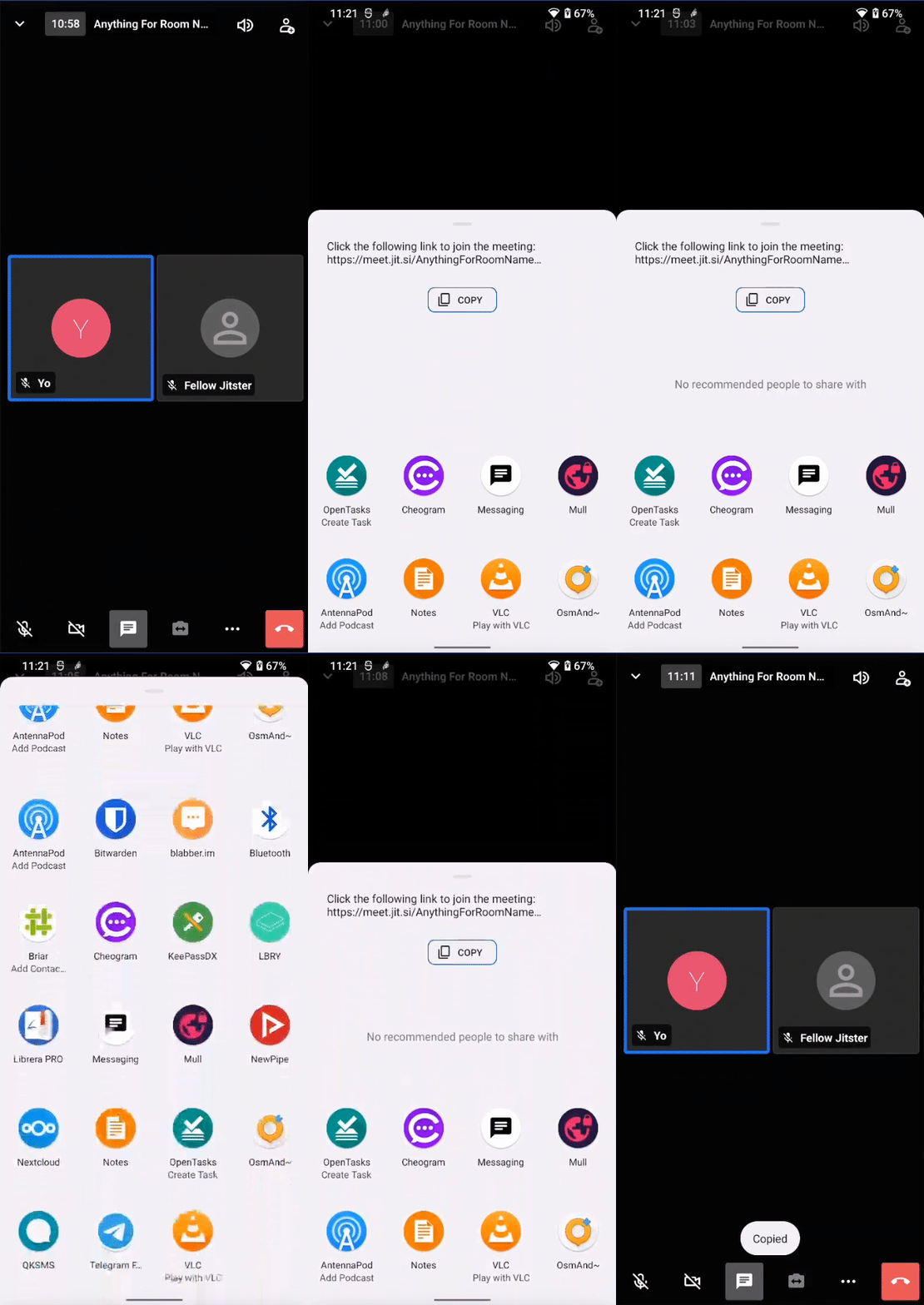
This will show you the URL, which anyone can use to enter the chat room.
You can also directly invite friend through various applications you have installed.
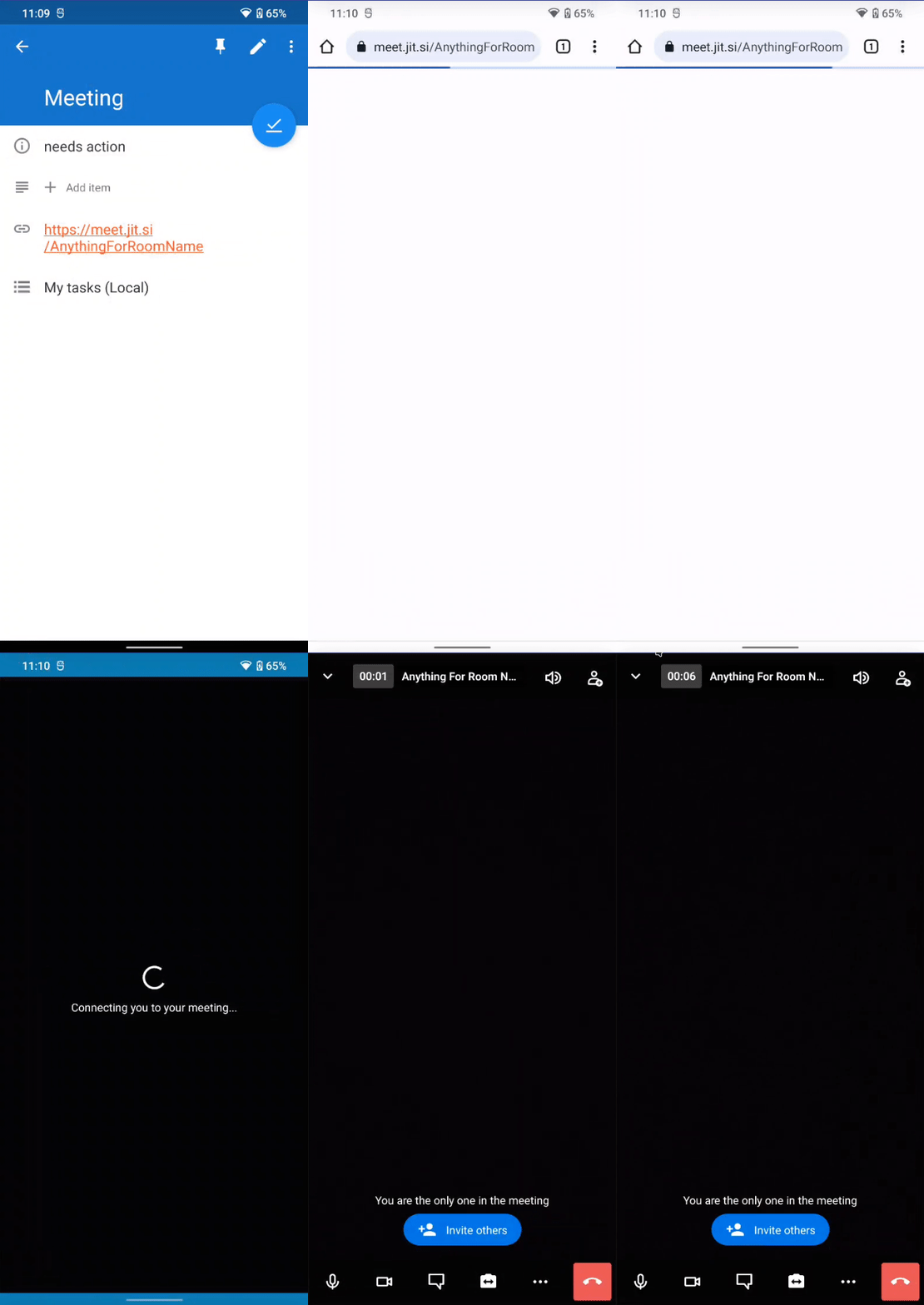
If you want to join a room through an URL, you can just open the link normally through the browser. From there, you will can be redirected to the Jitsi application and the specific room will be loaded automatically.
4. How to moderate your meeting
There are number of functions that enable a host/moderator to manage the flow and interaction-level of meeting participants.
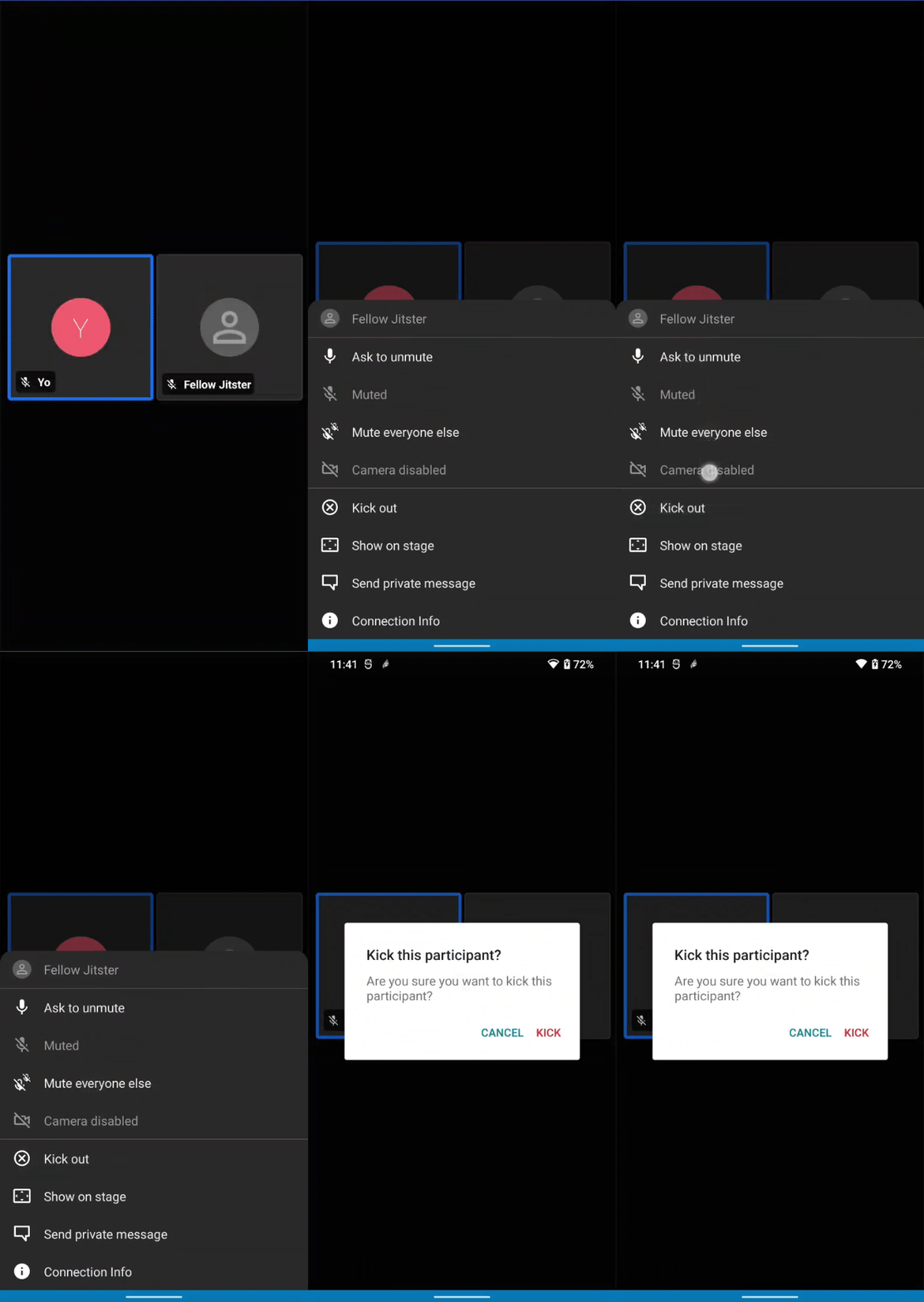
The moderator has the power to mute others, disable their video, or even remove them from the chat room.
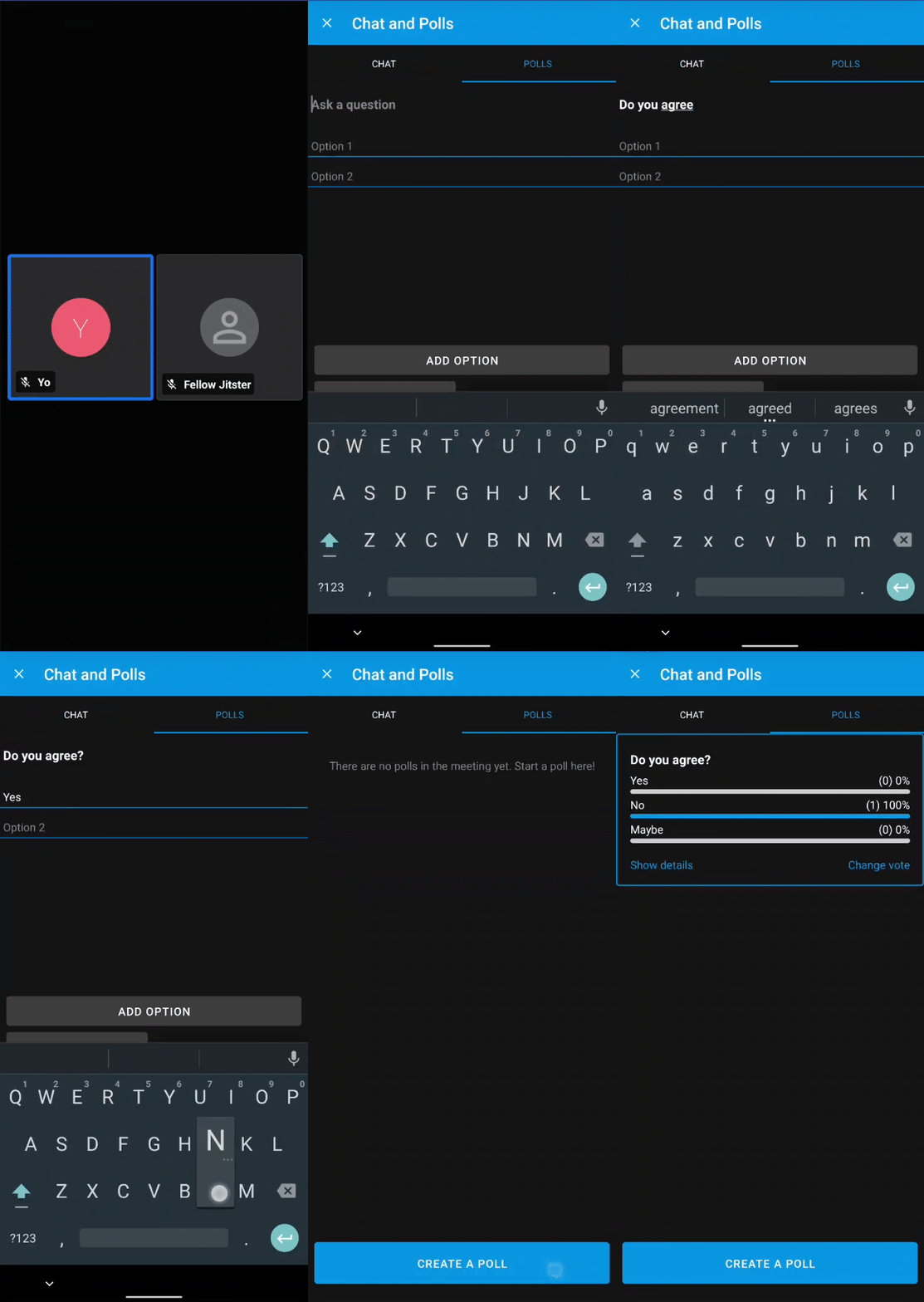
Furthermore, in the text-chat section, there is a tab for polls to be created.
The host has also the ability to set a password for more security of undesired participants - as well as a lobby, where people have to enter a username first.